
Monday, September 20, 2010
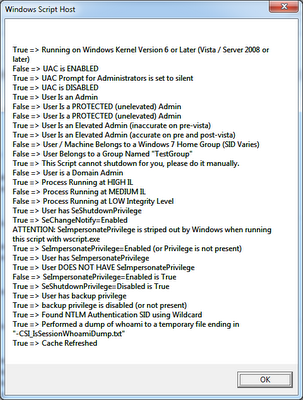
SCRIPT: Detect UAC
I found a very nice VBScript to detect UAC and more settings at http://csi-windows.com/toolkit/csi-issession

Friday, September 17, 2010
VMware: Error The specified parameter was not correct: "." on VMware Converter
When you try to P2V a Windows 2008 R2 or Windows 7 x64 using VMware Converter 4.3 you receive following error: The specified parameter was not correct: "."

Solution: right click on VMware Converter icon on the desktop and choose Run as administrator
Note to VMware: UAC is around since Windows 2008 and Windows Vista (probably +3 years), will be nice if your development team learn about it!!!!!
Wednesday, September 15, 2010
VMware: How to Install VMware ESX 3.5 or VMware ESXi v3.5 on VMware Workstation 7.x
Detailed instructions to Install VMware ESX 3.5 or VMware ESXi v3.5 on VMware Workstation 7.x available as a PDF at:
http://technotes.musumeci.com.ar/How_to_Install_VMware_ESX_3.5_on_VMware_Workstation_7.pdf
http://technotes.musumeci.com.ar/How_to_Install_VMware_ESX_3.5_on_VMware_Workstation_7.pdf
Monday, September 13, 2010
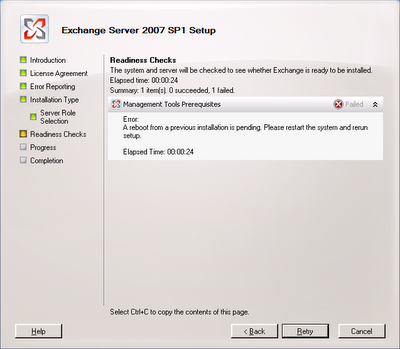
MS: A reboot from previous installation is pending on Exchange 2007
When you try to install a Exchange 2007 component like Management Tools, you will receive a message: A reboot from previous installation is pending. Please restart the system and rerun setup.
 Solution:
1) Remove an orphaned UpdateExeVolatile registry key value
Navigate to HKLM\SOFTWARE\Microsoft\Updates\
In the right navigation pane, double-click the UpdateExeVolatile key and configure the key with a value of 0
2) Delete the orphaned PendingFileRenameOperations registry key
Navigate to HKLM\SYSTEM\CurrentControlSet\Control\Session Manager\, right-click the PendingFileRenameOperations key and select Delete.
 Solution:
1) Remove an orphaned UpdateExeVolatile registry key value
Navigate to HKLM\SOFTWARE\Microsoft\Updates\
In the right navigation pane, double-click the UpdateExeVolatile key and configure the key with a value of 0
2) Delete the orphaned PendingFileRenameOperations registry key
Navigate to HKLM\SYSTEM\CurrentControlSet\Control\Session Manager\, right-click the PendingFileRenameOperations key and select Delete.
VMWARE: How to install a VMware vCenter 4.1 to access a remote SQL Server Database
1) Install 64-bit SQL ODBC driver
Download and install SQL Server native client on the new vCenter server
http://download.microsoft.com/download/4/4/D/44DBDE61-B385-4FC2-A67D-48053B8F9FAD/sqlncli_x64.msi
2) Create a 64-bit System DSN
Open ODBC Data Source Administrator and create a System DSN choosing SQL Server Native as Driver
Detailed instructions available at
http://technotes.musumeci.com.ar/How_to_install_vCenter_to_access_remote_SQL_Server_Database.pdf
Download and install SQL Server native client on the new vCenter server
http://download.microsoft.com/download/4/4/D/44DBDE61-B385-4FC2-A67D-48053B8F9FAD/sqlncli_x64.msi
2) Create a 64-bit System DSN
Open ODBC Data Source Administrator and create a System DSN choosing SQL Server Native as Driver
Detailed instructions available at
http://technotes.musumeci.com.ar/How_to_install_vCenter_to_access_remote_SQL_Server_Database.pdf
Wednesday, September 08, 2010
VMware: Turn vCPU’s into vCores
The procedure below will "convert" vCPUs into vCores
Example: we have software product licensed for 2 CPUs. We add 4 vCPU to VMWare VM.
Using the procedure below, we can convert these 4 CPU as 2CPU of 2 Cores each.
1.Power off the VM
2.Right click on the VM and select “Edit Settings…”
3.Select the “Options” tab
4.Click on “General” (in the “Advanced” options section)
5.Click “Configuration Parameters…” (in the pane on the right)
6.Click “Add Row”
7.Enter “cpuid.coresPerSocket” in the “Name” column
8.Enter a value, like 2 or 4 in the “Value” column
9.Click “OK”
10.Power on the VM
Based on a post from Duncan at YellowBrick
Example: we have software product licensed for 2 CPUs. We add 4 vCPU to VMWare VM.
Using the procedure below, we can convert these 4 CPU as 2CPU of 2 Cores each.
1.Power off the VM
2.Right click on the VM and select “Edit Settings…”
3.Select the “Options” tab
4.Click on “General” (in the “Advanced” options section)
5.Click “Configuration Parameters…” (in the pane on the right)
6.Click “Add Row”
7.Enter “cpuid.coresPerSocket” in the “Name” column
8.Enter a value, like 2 or 4 in the “Value” column
9.Click “OK”
10.Power on the VM
Based on a post from Duncan at YellowBrick
Wednesday, September 01, 2010
VMware ESX and ESXi 4.1 Comparison
VMware ESX and ESXi 4.1 Comparison
http://www.vmware.com/products/vsphere/esxi-and-esx/index.html
http://www.vmware.com/products/vsphere/esxi-and-esx/compare.html#c177109
Upgrade from ESX to ESXi
http://www.vmware.com/products/vsphere/esxi-and-esx/upgrade.html#c177045
http://www.vmware.com/products/vsphere/esxi-and-esx/index.html
http://www.vmware.com/products/vsphere/esxi-and-esx/compare.html#c177109
Upgrade from ESX to ESXi
http://www.vmware.com/products/vsphere/esxi-and-esx/upgrade.html#c177045
MS: How to Setup a KMS Server for Office 2010
This technical note included:
- How to Install a Windows Server 2008 / 2008 R2 KMS Server
- Install Office 2010 licenses in the KMS Server

We need to deploy a KMS Server for Office 2010 if we planning to deploy Office 2010 as streaming application in Citrix or App-V.
http://xenapp6.musumeci.com.ar/TechnicalNotes/How_to_Setup_a_KMS_Server_for_Office_2010.html
Tuesday, August 31, 2010
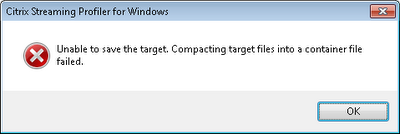
CTX: Unable to save the target. Compacting target files into a container file failed.
When we are going to build the Profile on the Citrix Streaming Profiler, we receive the error: Unable to save the target. Compacting target files into a container file failed.
To fix this issue,we need to reset the permissions of all files inside the profile, using the following process:

To fix this issue,we need to reset the permissions of all files inside the profile, using the following process:
• Open the Windows Explorer, select the CtxPackager folder.
• Right click over this folder and select Properties.
• Click on Security tab and then in Advanced button.
• Click on the Owner tab, then in the Edit button.
• Enable the Replace owner on subcontainers and objects checkbox.
Wednesday, August 25, 2010
MS: Enable Aero on Windows Server 2008 R2
How to Enable Aero on Microsoft Windows Server 2008 R2
1) Install latest Video Drivers for your machine. If your manufacturer doesn’t provide a Windows 2008 x64 ones, use Windows 7 x64 drivers. Aero doesn’t work with Standard Video driver provided by Microsoft.
2) Install Desktop Experience feature: Control Panel -> Programs -> Turn Windows features on or off -> Features -> Add Features -> Desktop Experience and reboot machine
3) Enable Themes service: set Themes service to Automatic startup and start service.
4) Adjust Windows for best appearance: Control Panel -> System and Security -> System -> Advanced system settings -> Performance -> Settings -> Visual Effects -> Adjust for best appearance
5) Set Aero theme: Control Panel -> Appearance and Personalization -> Change Theme -> choose Windows 7 Aero Theme.
1) Install latest Video Drivers for your machine. If your manufacturer doesn’t provide a Windows 2008 x64 ones, use Windows 7 x64 drivers. Aero doesn’t work with Standard Video driver provided by Microsoft.
2) Install Desktop Experience feature: Control Panel -> Programs -> Turn Windows features on or off -> Features -> Add Features -> Desktop Experience and reboot machine
3) Enable Themes service: set Themes service to Automatic startup and start service.
4) Adjust Windows for best appearance: Control Panel -> System and Security -> System -> Advanced system settings -> Performance -> Settings -> Visual Effects -> Adjust for best appearance
5) Set Aero theme: Control Panel -> Appearance and Personalization -> Change Theme -> choose Windows 7 Aero Theme.
Create a mobile Hyper-V R2 server on a laptop
How to Create a mobile Hyper-V R2 server on a laptop.
My consulting job requires test lots of applications or builds demos or servers to study new certifications. I download and tested the 30 days VMware Workstation on a Windows 7 Enterprise and then I installed a Windows Server 2008 R2 with Hyper-V R2 in a second partition and compared run both environments for a few days in my old Dell laptop. The winner was Hyper-V.
I found the CPU is the real problem when you run multiples VMs in my old laptop and not the memory, so at least a Quad Core with HT is a required.
The next step was to choose a laptop to run it.
I review dozens and dozens of laptops with a price tag between $1000 to $1500.
I was looking for several features:
- Intel Core i7 Quad Core CPU (720QM or up)
- The machine will support 8GB or more of memory (2 or 4 slots)
- Screen resolution of 1600 x 900 or similar. 15” or 17”
- Will be nice to have 2 hard drives
- 9 cell batteries
Last runners:
- HP Pavilion dv7-4080us $1199 – i7 720QM with 6GB (8GB Max), 1TB (2x500 GB HDD 7200rpm), 17” (1600x900), 9 cell battery, Blu-ray device
- HP ENVY 17-1011NR $1599 - i7 720QM with 8GB (8GB Max), 640GB (2x320GB HDD 7200rpm), 17” (1600x900), 9 cell battery, Blu-ray device
- Acer Aspire AS7745G-6572 $999, i7 720QM with 4GB (16GB Max) 500GB HDD 5400rpm , 17” (1600x900), 6 cell battery, DVD
- Lenovo IdeaPad Y560 $999, i7 720QM with 8GB (8GB Max), 500GB HDD (7200RPM), 15.6” (1366x768), 6 cell Battery, DVD
- Dell Studio 15, $1200, i7 720QM with 8GB (8GB Max), 500GB HDD (7200RPM), 15.6” (1920x1080), 6 cell Battery, DVD
And the winner is HP Pavilion dv7-4080us!
I love this machine. It arrived with Win7 Ultimate and I formatted the hard drive and installed Windows 7 Enterprise and Windows Server 2008 R2 with Hyper-V R2.
Below is a screenshot of current state of my machine:
My consulting job requires test lots of applications or builds demos or servers to study new certifications. I download and tested the 30 days VMware Workstation on a Windows 7 Enterprise and then I installed a Windows Server 2008 R2 with Hyper-V R2 in a second partition and compared run both environments for a few days in my old Dell laptop. The winner was Hyper-V.
I found the CPU is the real problem when you run multiples VMs in my old laptop and not the memory, so at least a Quad Core with HT is a required.
The next step was to choose a laptop to run it.
I review dozens and dozens of laptops with a price tag between $1000 to $1500.
I was looking for several features:
- Intel Core i7 Quad Core CPU (720QM or up)
- The machine will support 8GB or more of memory (2 or 4 slots)
- Screen resolution of 1600 x 900 or similar. 15” or 17”
- Will be nice to have 2 hard drives
- 9 cell batteries
Last runners:
- HP Pavilion dv7-4080us $1199 – i7 720QM with 6GB (8GB Max), 1TB (2x500 GB HDD 7200rpm), 17” (1600x900), 9 cell battery, Blu-ray device
- HP ENVY 17-1011NR $1599 - i7 720QM with 8GB (8GB Max), 640GB (2x320GB HDD 7200rpm), 17” (1600x900), 9 cell battery, Blu-ray device
- Acer Aspire AS7745G-6572 $999, i7 720QM with 4GB (16GB Max) 500GB HDD 5400rpm , 17” (1600x900), 6 cell battery, DVD
- Lenovo IdeaPad Y560 $999, i7 720QM with 8GB (8GB Max), 500GB HDD (7200RPM), 15.6” (1366x768), 6 cell Battery, DVD
- Dell Studio 15, $1200, i7 720QM with 8GB (8GB Max), 500GB HDD (7200RPM), 15.6” (1920x1080), 6 cell Battery, DVD
And the winner is HP Pavilion dv7-4080us!
I love this machine. It arrived with Win7 Ultimate and I formatted the hard drive and installed Windows 7 Enterprise and Windows Server 2008 R2 with Hyper-V R2.
Below is a screenshot of current state of my machine:
 You can see 6 VMs running on it and I have the CPU at 0% and 4GB of RAM used (I have 2 extra GB of RAM available and can replace the 2GB memory module for 4GB for around $100).
VMs running are:
- BrickDB01 - Windows 2008 R2 and SQL 2008 R2 DB Citrix Datastore
- BrickDC01 - Windows 2008 R2 Domain Controller
- BrickProfiler - Windows 7 Enterprise to profile Citrix Streamed applications
- BrickXA01 - Windows 2008 R2 and Citrix XenApp 6 server
- BrickXA02 - Windows 2008 R2 and Citrix XenApp 6 server
- CONVERG - Windows 7 Enterprise with Office 2010 machin
The only thing I don't like about this machine is the touchpad (you can disable it) and this machine doesn’t include a TPM chip.
Tuesday, August 24, 2010
MS: Enable Network Discovery on Windows 2008
In order to enable the Network Discovery settings, you may make sure the following services are enabled and running.
- DNS Client
- Function Discovery Resource Publication
- SSDP Discovery
- UPnP Device Host
MS: Change Network Location on Windows 2008
The network location description is stored in the following registry value:
HKEY_LOCAL_MACHINE\SOFTWARE\Microsoft\Windows NT\CurrentVersion\NetworkList\Profiles\{}
The value of Category is set as follows;
Public = 0
Home = 1
Work = 2
HKEY_LOCAL_MACHINE\SOFTWARE\Microsoft\Windows NT\CurrentVersion\NetworkList\Profiles\{
The value of Category is set as follows;
Public = 0
Home = 1
Work = 2
Thursday, August 05, 2010
MS: Windows 7 move pagefile error
When you move a Windows 7 the pagefile.sys file to another hard drive and restart you computer you receive following error:
Windows created a temporary paging file on your computer because of a problem that occurred with your paging file configuration when you started your computer. The total paging file size for all disk drives may be somewhat larger than the size you specified.
Try to increase the size of the pagefile. For example if you have 4GB of RAM. Set pagefile to 4096MB minimum and 8192 MB as maximum.
Windows created a temporary paging file on your computer because of a problem that occurred with your paging file configuration when you started your computer. The total paging file size for all disk drives may be somewhat larger than the size you specified.
Try to increase the size of the pagefile. For example if you have 4GB of RAM. Set pagefile to 4096MB minimum and 8192 MB as maximum.
Tuesday, August 03, 2010
CtxAdmTools: Remote Service Manager v1.1 released!
Remote Service Manager is new FREE tool to manage specific Windows services on remote servers.
We can load a list of specific servers and services from text files.
We can start, stop, restart, pause, resume services, set startup mode to automatic, disabled or manual on remote servers.
We can load a list of specific servers and services from text files.
We can start, stop, restart, pause, resume services, set startup mode to automatic, disabled or manual on remote servers.
More info at http://ctxadmtools.musumeci.com.ar/RemoteServicesManager

Sunday, August 01, 2010
CtxAdmTools: Filter Events v1.0 Released!
Currently I’m working in a client and I need to analyze more than 110,000 logs entries in the security log of Windows Server 2003 with specific words and export the results to a file, I found both filter and find on Event Viewer pretty bad options so last night I created a tool to filter events called Filter Events.
The tool read first 100 events (we can change this limit running filterevents /setup-events) and we can move between these log entries using buttons on right.
We can enter a text string to search inside log message description using text box called Filter Events Containing. The search option will display first 100 events (or any value specified using /setup-events) or less. The search function will scan first 5,000 events by default (we can change this limit running filterevents /setup-max).
We can use the Copy Event to Log button to copy specific event to Event Log and using the Save Report button to export file to .rtf file for further analysis.
The tool is available for download at http://ctxadmtools.musumeci.com.ar/FilterEvents

The tool read first 100 events (we can change this limit running filterevents /setup-events) and we can move between these log entries using buttons on right.
We can enter a text string to search inside log message description using text box called Filter Events Containing. The search option will display first 100 events (or any value specified using /setup-events) or less. The search function will scan first 5,000 events by default (we can change this limit running filterevents /setup-max).
We can use the Copy Event to Log button to copy specific event to Event Log and using the Save Report button to export file to .rtf file for further analysis.
The tool is available for download at http://ctxadmtools.musumeci.com.ar/FilterEvents

Wednesday, July 28, 2010
CTX: TechEdge 2010 Presentations List
Citrix TechEdge is a free event hosted by top Citrix Technical Support engineers at Citrix Summit and Synergy, where you gain in-depth knowledge on the latest troubleshooting tools, methodologies and fixes for your Citrix Application Delivery Infrastructure. TechEdge 2010 was held on Tuesday, May 11th at the Moscone West Convention Center, San Francisco, California.
This article lists the presentations and videos from TechEdge 2010 that are available on the Citrix Knowledge Center.
CTX125175 - TechEdge 2010 - Debugging a Citrix XenApp and XenDesktop Environment
CTX125177 - TechEdge 2010 - Troubleshooting XenDesktop Deployments
CTX125178 - TechEdge 2010 - XenServer Storage Management and Troubleshooting
CTX125180 - Troubleshooting XenDesktop, Provisioning Services & XenServer Integration
CTX125181 - TechEdge 2010 - Troubleshooting Performance Issues in a Virtualized Environment
CTX125182 - TechEdge 2010 - Provisioning Services Stream Process Architecture and Advanced Troubleshooting
CTX125183 - TechEdge 2010 - Netscaler VPX Implementation and Troubleshooting
CTX125184 - TechEdge 2010 - Optimizing NetScaler for Enterprise Web Applications
This article lists the presentations and videos from TechEdge 2010 that are available on the Citrix Knowledge Center.
CTX125175 - TechEdge 2010 - Debugging a Citrix XenApp and XenDesktop Environment
CTX125177 - TechEdge 2010 - Troubleshooting XenDesktop Deployments
CTX125178 - TechEdge 2010 - XenServer Storage Management and Troubleshooting
CTX125180 - Troubleshooting XenDesktop, Provisioning Services & XenServer Integration
CTX125181 - TechEdge 2010 - Troubleshooting Performance Issues in a Virtualized Environment
CTX125182 - TechEdge 2010 - Provisioning Services Stream Process Architecture and Advanced Troubleshooting
CTX125183 - TechEdge 2010 - Netscaler VPX Implementation and Troubleshooting
CTX125184 - TechEdge 2010 - Optimizing NetScaler for Enterprise Web Applications
Monday, July 12, 2010
MS: Windows Server 2008 R2 SP1 Beta available!
Windows Server 2008 R2 SP1 Beta Available for Download
The two most important developments in SP1 for Windows Server 2008 R2 are:
Dynamic memory lets Hyper-V administrators pool available memory on a physical host and dynamically distribute it to any virtual machine(s) running on that host. So as the workloads on that physical workload change, requiring more or less memory, Dynamic Memory will let administrators change the memory allocation to their VMs without service interruption.
RemoteFX enhances Microsoft desktop virtualization. RemoteFX lets Windows Server 2008 R2 administrators provide an even richer and user-transparent desktop virtualization experience. RemoteFX delivers rich content, independent of any graphics stack, to server-hosted virtual and session-based desktops, allowing them to support any screen content, including full-motion video, portable graphics stacks such as Silverlight, and 3D applications. Because it can use virtualized graphics on the server and advanced codecs , RemoteFX can deliver those experiences to a much wider array of target devices, including standard desktops and laptops but also an emerging slew of thin clients. You'll also be able to forward the USB ports of the local client to the virtual machine being accessed on the device - just like you can forward the local printer over RDP today.
Download at http://www.microsoft.com/windowsserver2008/en/us/trial-software.aspx
Sunday, July 11, 2010
CTX: How to Setup Remote Desktop Licensing in Windows Server 2008
How to Setup Remote Desktop Licensing in Windows Server 2008
This procedure explains how to setup the Remote Desktop Licensing (formerly know as Terminal Server license server) in Windows Server 2008.
The technical note is available here
This procedure explains how to setup the Remote Desktop Licensing (formerly know as Terminal Server license server) in Windows Server 2008.
The technical note is available here
CTX: How to Create a Citrix Data store in SQL Server 2008 R2
How to Create a Citrix Data store in SQL Server 2008 R2
This procedure explains how to create a Citrix Data Store in SQL Server 2008 step by step.
The technical note is available Here
This procedure explains how to create a Citrix Data Store in SQL Server 2008 step by step.
The technical note is available Here
Subscribe to:
Posts (Atom)