Guillermo

Sunday, November 17, 2013

CtxAdmTools TS and RDS License Manager v1.0

CtxAdmTools TS and RDS License Manager v1.0


This FREE tool manage servers and desktops TS and RDS licensing from one console

Release Date: Saturday, November 16, 2013

Manage Terminal Server and Remote Desktop Services licensing from ONE single console

TS and RDS License Manager Console

on multiple Windows server and desktop versions

Do more in less time:

Scan your AD domain or file list of machines to create an inventory of your machines.
Asset Management. Export inventory of TS and RDS servers to Excel file.
Enable or disable Remote Desktop on remote Windows server and desktop machines.
Configure TS or RDS license servers on remote Windows servers.
Change TS or RDS license mode to Per Device Mode or Per User Mode.
Launch Remote Desktop session of selected Windows server and desktop machines.
Detect and fix license issues on your Citrix XenApp and XenDesktop farms.

Simple.
Enable Remote Desktop on remote machines with just one click.
Discover more features.

Enable TS and RDS remotely

Quick. Save your time.
Change TS and RDS license mode in 3 seconds instead of 5 minutes.
Compare features.

Change TS and RDS License Mode

Compatible with all modern Windows OS versions

TS and RDS License Manager supports following Windows server versions:
Windows 2000 Server, Windows Server 2003 / 2003 R2, Windows Server 2008 / 2008 R2 and Windows Server 2012 / 2012 R2.

Also, following Windows desktop OS are supported: Windows XP, Windows Vista, Windows 7 and Windows 8.

Learn more about TS and RDS License Manager

Tuesday, September 10, 2013

CtxAdmTools: AD Group Members v2.0 released!

AD Group Members v2.0


This FREE tool list Members of Active Directory Groups

Download at http://www.ctxadmtools.com

Release Date: September 2013

Do you have hundred of AD Groups and you want to check membership of users?

You can search Active Directory Groups, List Members and export results to Excel files.

New features included on the new version 2.0:

New Metro Interface inspired by Windows 8 and Windows Phone Metro UI.

Active Directory browser help you choose the OU to search groups:

AD Browser

Allow unsupported characters in AD Group Names: if your organization uses groups names with unsupported characters most of scripts and tools (including the previous version of AD Group Members) will fail. (Available on Full Version only)

Faster: now AD Group Members is 40-60% faster than version 1.0!

Load AD Groups button: Search and List All Groups in Active Directory or the OU specified using the AD browser.

Load AD Groups

Filter AD Groups textbox: Search and filter AD groups based on the name.

List Group Members button: List members of selected AD group(s).

Clear Lists button: clear both AD Groups and AS Members windows.

Remove Duplicates button: Remove duplicate members.

Export Excel button: Save the information to a Excel file. (Available in the Full version only)


Cancel Search button: Interrupt the search. 

Show AD Group Membership checkbox: show users and groups names.


Wednesday, April 24, 2013

My new www.ctxadmtools.com site is live with a new Metro style look!


CtxAdmTools is getting a new face! The new site www.ctxadmtools.com is inspired on the new Windows 8 Metro UI Style. The theme is responsible (adapt the content to the size of the screen) and works perfect on mobile phones and tablets.

The site was tested intensively on IE6, IE7, IE8, IE9, IE10, FireFox, Safari, Chrome and mobile devices (iPad, iPhone, Windows Mobile, etc).

Thursday, February 21, 2013

My new Metro UI Style web site

Over last three months I spent several hours working on a theme/template to update my web site www.musumeci.com.ar.

The new web site is inspired on the new Windows Metro UI Style. The theme is responsible (adapt the content to the size of the screen) and works perfect on mobile phones and tablets.

The site was tested intensively on IE6, IE7, IE8, IE9, IE10, FireFox, Safari, Chrome and mobile devices (iPad, iPhone, Windows Mobile, etc).
 

The new www.ctxadmtools.com site is also getting Metro UI look. Currently in Beta will be live soon!

Wednesday, November 21, 2012

CTX: Configure Citrix XenApp6 using a Oracle database

The first step before the setup of XenApp 6 on the server is install the Oracle Client 32-bit on the server.

Download the file win32_11gR2_client.zip (Oracle Database 11g Release 2 Client for Microsoft Windows (32-bit)) available at


Descompress the .zip file and run the Setup file.


Then run the XenApp setup and you will see the Oracle option is available.

Thursday, March 01, 2012

Windows 8 Consumer Preview released!

This is the new face of Windows: Windows 8 and Metro GUI. Download (and install!) Windows 8 from http://windows.microsoft.com/en-US/windows-8/download


This is an screen shot of Build 8250. Pretty amazing!

Wednesday, February 22, 2012

MS: Determine which version of Office installed

How to determine which version of an Office 2010 product is installed
http://support.microsoft.com/kb/2121559

How to determine which version of a 2007 Office product is installed
http://support.microsoft.com/kb/928116

How to check the version of Office 2003 products
http://support.microsoft.com/kb/821549

How to check the version of Office XP
http://support.microsoft.com/kb/291331

How to determine the version of your Office 2000 program
http://support.microsoft.com/kb/255275

Monday, February 13, 2012

MS: Hyper-v R2 VM failed to start - Unable to allocate Ram: insufficient system resources - Error 0x800705AA

The Problem:

I have been running lot of VMs on the same Windows 2008 R2 server with Hyper-V role installed since November 2010. I updated server to SP1 a long time ago and keep server updated. No antivirus installed, because this is standalone training server. No Active Directory. Intel Core i7 with 6GB RAM.

On Thursday, I tried to start 4 VMs (usuallyI ran 5 to 7 simultaneous VMs) and when I tried VM #3 I got the following error:

MachineName failed to start
Unable to allocate xxx MB of Ram: insufficient system resources exist to complete the request service (0x800705AA)


So I spent last 4 days going through different tests:
  • Remove video card driver.
  • Disabled all software running on the server (this software was running before)
  • Uninstall all software I can.
  • Check online for similar issues.
  • Modified the cached physical memory reservation (using the registry key), to increase free physical memory.
  • Change memory assignment on VM to dynamic.
  • Applied few hotfixes (KB983289 and KB979149)
  • Check the event viewer for more info
  • Verify I have enough space on all disk partitions
  • Reinstall Hyper-V

Usually I ran for VMs ( 2 x 512MB of RAM + 2 x 768 RAM) and again I was doing this since November 2010.As you can see below there are plenty of memory available.


Solution:

After 4 days and running out of ideas I posted this issue on the Hyper-V forum and minutes later, Bob Comer a Microsoft MVP Virtual Machine posted that issue was caused by a Google application called GooglecrashHandler.exe

* Open Task Manager and found two process called GooglecrashHandler, killed them and using Autoruns I found they in Task Scheduler. Remove all entries.

* Delete directory D:\Program Files (x86)\Google\Update

* Delete the HKEY_LOCAL_MACHINE\SYSTEM\CurrentControlSet\services\gupdate registry key

* Delete the HKEY_LOCAL_MACHINE\SYSTEM\CurrentControlSet\services\gupdatem registry key

After that I was able to start all VMs. Thanks Bob!

Final Questions:

  • So the first question is how a 64k crap process created by Google can cause a problem like this?
  • Why this crap is installed on my system when I never installed any Google application?
  • And why the damn applications is not show in the Add/Remove Programs in Control Panel?
  • Why developers at Google are so BAD creating programs?
  • And finally: this issue was caused because Google developers are really f****** i***** or this is intentional?
  • Why this process is not considered a spyware or virus for antivirus companies?

Thursday, January 26, 2012

MS: Script Get List .NET Framework version for list of computers

One of my colleague in the WIndows Operations team asked me to create a VBscript to get all .NET Framework Version installed on a list of servers (provided in a .txt file). I created the script using blocks so the team can reuse it for multiples tasks.

To use the script: Cscript NetFramework.vbs , where is the text file with a list of servers or machines.


'--- script start here--
On Error Resume Next

Const HKEY_LOCAL_MACHINE = &H80000002
RegistryRoot= HKEY_LOCAL_MACHINE
Dim NetF(10)
Dim Version(10)

NetF(1) = "SOFTWARE\Microsoft\NET Framework Setup\NDP\v1.1.4322"
Version(1) = "1.1"
NetF(2) = "Software\Microsoft\NET Framework Setup\NDP\v2.0.50727"
Version(2) = "2.0"
NetF(3) = "Software\Microsoft\NET Framework Setup\NDP\v3.0"
Version(3) = "3.0"
NetF(4) = "Software\Microsoft\NET Framework Setup\NDP\v3.5"
Version(4) = "3.5"
NetF(5) = "SOFTWARE\Microsoft\NET Framework Setup\NDP\v4\Client"
Version(5) = "4.0"
NetCount = 5

Set objArgs = WScript.Arguments
if objArgs.Count = 0 then
WScript.Echo "Command line parameters not specified"
WScript.Echo "Usage: Cscript NetFramework.vbs "
WScript.quit
end if
ServerList = trim(objArgs(0))
OutputFile = "NetF-Report.csv"

'Create Header
Header="ServerName"
For I=1 to NetCount
Header=Header & "," & Version(I)
Next

'Record loop for servers
Set objFSO = CreateObject("Scripting.FileSystemObject")
Set objInFile = objFSO.OpenTextFile(ServerList, 1)
Info=Header & vbcrlf & CSVLine
Do Until objInFile.AtEndOfStream
strLine = objInFile.ReadLine
strComputer = strLine
wscript.echo "Checking machine " & Ucase(strComputer)
Info = Info & GetServerInfo(strComputer) & vbcrlf & CSVLine
Loop

'delete existing report file
objFSO.DeleteFile(OutputFile)

'create new report file
Set objFile = objFSO.CreateTextFile(OutputFile)
objFile.Write Info
objFile.Close

'*********************
'** Get Server Info **
'*********************
function GetServerInfo(ServerName)
Result=ServerName
if Ping(ServerName)=True then
For I=1 to NetCount
if ReadReg(ServerName, RegistryRoot, NetF(I), "Install")=True then
SPVersion=ReadRegValue(ServerName, RegistryRoot, NetF(I), "SP")
if SPVersion>0 then
Result=Result & ",SP" & SPVersion
else
Result=Result & ",NO SP"
end if
else
Result=Result & ",No"
end if
Next
else
Result = Result & ",N/A"
end if
GetServerInfo = Result
end function

'*******************
'** Read Registry **
'*******************
Function ReadReg(strComputer, RegistryRoot, strKeyPath, strValueName)
Set objRegistry = GetObject("winmgmts:\\" & strComputer & "\root\default:StdRegProv")
objRegistry.GetDWordValue RegistryRoot,strKeyPath,strValueName,strValue
If IsNull(strValue) Then
ReadReg = False
Else
ReadReg = True
End If
End Function

'*************************
'** Read Registry Value **
'*************************
Function ReadRegValue(strComputer, RegistryRoot, strKeyPath, strValueName)
Set objRegistry = GetObject("winmgmts:\\" & strComputer & "\root\default:StdRegProv")
objRegistry.GetDWordValue RegistryRoot,strKeyPath,strValueName,strValue
ReadRegValue = strValue
End Function

'******************
'** Ping Machine **
'******************
Function Ping(strHost)
Dim objPing, objRetStatus
Set objPing = GetObject("winmgmts:{impersonationLevel=impersonate}").ExecQuery _
("select * from Win32_PingStatus where address = '" & strHost & "'")

for each objRetStatus in objPing
if IsNull(objRetStatus.StatusCode) or objRetStatus.StatusCode<>0 then
Ping = False
else
Ping = True
end if
next
End Function

Thursday, November 03, 2011

VMware: Windows 2008 R2 SP1 memory issues on VMware ESX 3.5

Definitely there is an issue running Windows 2008 R2 Service Pack 1 (SP1) VM on ESX 3.5.

We have several VMs running SQL Server, IIS, SharePoint and Project Servers. After lot of timeout issues, I decided to spend a couple of hours to research where the issue is.

I saw the VM is using almost all memory and only 25MB of free memory is available.

I started disabling all services (IIS, SharePoint, SQL, Antivirus) and rebooted server. Server still using around 3.8 GB of RAM of 4GB.

Rebooted on safe mode, using 380 MB! Rebooted on safe mode with networking around 460 MB!

Then I compared with others servers (1 VM and 1 physical server). Same issue on the VM, but physical server was using around 800MB of RAM.

I decided to uninstall VM Tools and viola! Issue resolved.

Monday, October 17, 2011

How to enable x64 platform optimization on Visual Studio C# 2010 Express

How to enable x64 platform optimization on Visual Studio C# 2010 Express

Today I’m working in access in to HP Blades chassis info from using PowerShell (HewlettPackard.Servers.BladeSystem.HPBladeSystemEnclosureCmdLets) from C#. Sounds complicated and it is. Anyway, I used C#.NET or VB.NET to run PowerShell for VMware, Exchange and Citrix until I got HP and they ruin it.

I read the brilliant HP BladeSystem PowerShell cmdlets post and tried on PowerShell and it failed until I decided to run PowerShell on Run As Administrator (not required for any of previous mentioned snap-ins) and works.

I tried to run the code from Visual Web Developer and after couple of hours decided to move the code to Visual C# console application. Tried and failed again. Nice. I started to thinking a lot in HP. Run as administrator mode and failed too.

Then I started my search and found some people complain about specific snap-ins need to run in 64bits mode.

So now is the part I think a lot on the MS how created the Visual C# Express Edition 2010. I tried to change the platform and I can’t found how to make it and take lot of time to figure out. So below is the solution:


  • On the Tools menu, select Settings and then Expert Settings.

  • On the Tools menu, select Options.

  • Enable the Show all settings checkbox below.

  • Select the Projects and Solutions option (left side) and enable the Show advanced build configurations checkbox.

  • On the Build menu, select Configuration Manager (if you don’t have the Build option, right-click in the toolbar and choose Customize and then the Build option).

  • On the Configuration Manager, choose New from the Active solution platform drop-down. On the new platform select x64 and choose to copy settings from x86.

  • To verify the setting select project properties (Project menu, project name properties), and the on Build tab, verify or set the platform to x64

Monday, August 01, 2011

500 Posts and Giveaway!

This is the historic post #500 and I'm going to celebrate it with a giveaway of 2 copies of my book "Getting Started with Citrix XenApp 6" in eBook format in the 4 next weeks!

Instructions at http://bit.ly/n3pFCA


MS: The WMI Performance Adapter service fill up the System event

Issue:

You found the System Event Viewer full of events related with the WMI Performance Adapter service. The service start and stop every 5 minutes.

Events are:

Log Name: System

Source: Service Control Manager
Event ID: 7036
Task Category: None
Level: Information
Keywords: Classic
User: N/A
Description: The WMI Performance Adapter service entered the stopped state.

and

Log Name: System
Source: Service Control Manager
Event ID: 7036
Task Category: None
Level: Information
Keywords: Classic
User: N/A
Description: The WMI Performance Adapter service entered the running state.


Solution:

Set the WMI Performance Adapter service Startup Mode to Automatic

Sunday, July 03, 2011

MS: IIS error Unrecognized attribute 'targetFramework'. Note that attribute names are case-sensitive

After install .NET Framework 4.0 on IIS 7 and deploying a .NET 4.0 (Visual Studio 2010) web site, you receive the following error: "Unrecognized attribute 'targetFramework'. Note that attribute names are case-sensitive"

Solution:

Select the site and on the Actions pane select Basic Settings. Use the Select button on the Application Pool to change the DefaultAppPool to ASP.NET v4.0


Restart the IIS site.

Monday, June 27, 2011

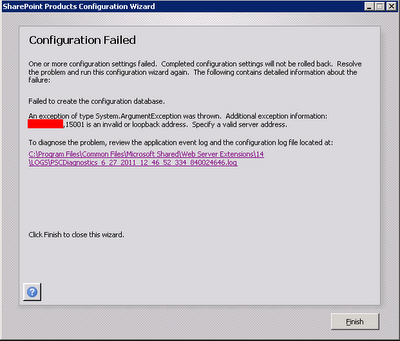
MS: SharePoint 2010 Configuration Failed - Failed to Create the Configuration Database

When you try to configure SharePoint 2010 to connect to a SQL Server using a non standard port, you will receive an error: Failed to create the configuration database.

An exception of type System.ArgumentException was thrown. Additional exception information: [Server Name or IP Address],[Port] is an invalid or loopback access. Specify a valid server address.

Solution:

  • Open odbcad32 tool.


  • Select the System DSN tab.


  • Add a new System Data Source: SQL Server.


  • Type the SQL server name on both Name and Server fields on the fist page.


  • On the second page, click on the Client Configuration button, unchecks the Dynamically Determine Port checkbox and enter the port number.

Tuesday, June 14, 2011

My book Getting Started with Citrix XenApp 6 is available!!

My new book "Getting Started with Citrix XenApp 6" by Packt Publishing is now available. You can order it at Packtpub.com


XenApp 6 is the leader in application hosting and virtualization delivery, allowing users from different platforms such Windows, Mac, Linux, and mobile devices to connect to their business applications. It reduces resources and costs for application distribution and management. Using Citrix XenApp 6, you can deploy secure applications quickly to thousands of users.

Getting Started with Citrix XenApp 6 provides comprehensive details on how to design, implement, and maintain Citrix farms based on XenApp 6. Additionally, you will learn to use management tools and scripts for daily tasks such as managing servers, published resources, printers, and connections.

Getting Started with Citrix XenApp 6 starts by introducing the basics of XenApp such as installing servers and configuring components, and then teaches you how to publish applications and resources on the client device before moving on to configuring content redirection.


Author Guillermo Musumeci includes a use case throughout the book to explain advanced topics like creating management scripts and deploying and optimizing XenApp for Citrix XenServer, VMware ESX, and Microsoft Hyper-V virtual machines. It will guide you through an unattended installation of XenApp and components on physical servers. By the end of this book you will have enough knowledge to successfully design and manage your own XenApp 6 Farms.

A complete guide to managing a virtualized application environment using XenApp

What you will learn from this book :


  • New features and system requirements of XenApp 6


  • The XenApp Architecture and designing XenApp 6 Farms


  • Install XenApp 6 and configure XenApp 6 components


  • Manage XenApp components and Citrix Administrators using the new Citrix Delivery Services Console and other Management tools


  • Publish and manage applications and resources, including application streaming


  • Create and apply Citrix Policies to control connections, security, and bandwidth settings using the Group Policy Management Console, Citrix Delivery Services Console, and Local Group Policy Editor.


  • Optimize multimedia content on XenApp using Citrix HDX technologies


  • Manage session environments and connections


  • Create PowerShell Scripts to manage the farm and call scripts from VB.NET and C#.NET


  • Deploy XenApp 6 on Citrix XenServer, Microsoft Hyper-V, and VMware ESX virtual machines
    Unattended installation of XenApp 6 on physical servers.


Approach

This book has a tutorial style with step-by-step instructions and adequate screenshots for carrying out each task.

Friday, April 15, 2011

Love this

Beautiful! Nothink like found a hard drive containing a folder called absolute critical with no free space!

Tuesday, March 15, 2011

Working on a big company with thousands of Citrix servers around the world running multiples version of XenApp and Presentation server is the perfect scenario to found removing MFCOM can be one of the big mistakes of Citrix on years.

In very distributed and secure environments with multiples domains PowerShell is just not working to manage remote servers as well MFCOM can do it.

I hope Citrix will release a Future Pack to provide full access to MFCOM soon, or adoption level of XA6 will keep low…. And companies will keep running old versions or migrate to XA5!!!

Nobody will rewrite hundred of scripts and tools to Powershell, because NOBODY are using PowerShell, maybe in a few years...

Tuesday, February 01, 2011

MS: Events 1085 and 8194 on Windows 2008 - Group Policy Issues

A full hard disk caused the following errors to appears on event viewer in a Windows Server 2008 running Terminal Server and Citrix XenApp. The lack of space caused a GPO corruption on the server.


Log Name: System
Source: Microsoft-Windows-GroupPolicy
Event ID: 1085
Level: Warning
Description:Windows failed to apply the Group Policy "MyPolicy" settings. Group Policy "MyPolicy" settings might have its own log file. Please click on the "More information" link.


Log Name: Application

Source: Group Policy Start Menu Settings
Event ID: 8194
Level: Error
Description: The client-side extension could not remove user policy settings for 'MyPolicy' because it failed with error code '0x8007000d The data is invalid.' See trace file for more details.

SOLUTION: Delete the content of folder C:\ProgramData\Microsoft\Group Policy\History, run GPUPDATE /FORCE and reboot server.