Guillermo

Thursday, September 23, 2010

CtxAdmTools: CtxCertifiedPrinters v1.2 released!

I was working on last weeks with a few 64-bit Citrix farms and I was reading about XenApp 6 Printing this morning on the metro to Downtown DC, so I decided to create a new tool called CtxCertifiedPrinters to list all certified, native, non-native and manufacturer 64-bit print drivers. The tool can export results to a Excel file.

If you are looking for 32-bit print driver tool, I created a tool called PrintCert, on July 2008 (in fact this is one of my first CtxAdmTools).


Monday, September 20, 2010

SCRIPT: How to enumerate citrix applications in a remote citrix server using WMI and VB.NT

How to enumerate citrix applications in a remote citrix server using WMI and VB.NET (no MFCOM required)

Imports System
Imports System.Management


Dim strComputer As String = "ctxserver01"

Dim oConn As ConnectionOptions = New ConnectionOptions
oConn.Username = "domain\username"
oConn.Password = "password"

Dim scope As New ManagementScope("\\" & strComputer & "\root\Citrix", oConn)
scope.Connect()

Dim objectQuery As New ObjectQuery("SELECT * FROM MetaFrame_ApplicationsPublishedOnServer")
Dim searcher As New ManagementObjectSearcher(scope, objectQuery)
For Each ctxApp In searcher.Get()
lstAppList.Items.Add(ctxApp("WinApp"))
Next ctxApp

SCRIPT: Detect UAC

I found a very nice VBScript to detect UAC and more settings at http://csi-windows.com/toolkit/csi-issession


Friday, September 17, 2010

VMware: Error The specified parameter was not correct: "." on VMware Converter

When you try to P2V a Windows 2008 R2 or Windows 7 x64 using VMware Converter 4.3 you receive following error: The specified parameter was not correct: "."

Solution: right click on VMware Converter icon on the desktop and choose Run as administrator

Note to VMware: UAC is around since Windows 2008 and Windows Vista (probably +3 years), will be nice if your development team learn about it!!!!!

Monday, September 13, 2010

MS: A reboot from previous installation is pending on Exchange 2007

When you try to install a Exchange 2007 component like Management Tools, you will receive a message: A reboot from previous installation is pending. Please restart the system and rerun setup.

Solution:

1) Remove an orphaned UpdateExeVolatile registry key value

Navigate to HKLM\SOFTWARE\Microsoft\Updates\

In the right navigation pane, double-click the UpdateExeVolatile key and configure the key with a value of 0

2) Delete the orphaned PendingFileRenameOperations registry key

Navigate to HKLM\SYSTEM\CurrentControlSet\Control\Session Manager\, right-click the PendingFileRenameOperations key and select Delete.

VMWARE: How to install a VMware vCenter 4.1 to access a remote SQL Server Database

1) Install 64-bit SQL ODBC driver

Download and install SQL Server native client on the new vCenter server

http://download.microsoft.com/download/4/4/D/44DBDE61-B385-4FC2-A67D-48053B8F9FAD/sqlncli_x64.msi


2) Create a 64-bit System DSN

Open ODBC Data Source Administrator and create a System DSN choosing SQL Server Native as Driver

Detailed instructions available at

http://technotes.musumeci.com.ar/How_to_install_vCenter_to_access_remote_SQL_Server_Database.pdf


Wednesday, September 08, 2010

VMware: Turn vCPU’s into vCores

The procedure below will "convert" vCPUs into vCores

Example: we have software product licensed for 2 CPUs. We add 4 vCPU to VMWare VM.
Using the procedure below, we can convert these 4 CPU as 2CPU of 2 Cores each.

1.Power off the VM
2.Right click on the VM and select “Edit Settings…”
3.Select the “Options” tab
4.Click on “General” (in the “Advanced” options section)
5.Click “Configuration Parameters…” (in the pane on the right)
6.Click “Add Row”
7.Enter “cpuid.coresPerSocket” in the “Name” column
8.Enter a value, like 2 or 4 in the “Value” column
9.Click “OK”
10.Power on the VM

Based on a post from Duncan at
YellowBrick

Tuesday, August 31, 2010

CTX: Unable to save the target. Compacting target files into a container file failed.

When we are going to build the Profile on the Citrix Streaming Profiler, we receive the error: Unable to save the target. Compacting target files into a container file failed.


To fix this issue,we need to reset the permissions of all files inside the profile, using the following process:

• Open the Windows Explorer, select the CtxPackager folder.
• Right click over this folder and select Properties.
• Click on Security tab and then in Advanced button.
• Click on the Owner tab, then in the Edit button.
• Enable the Replace owner on subcontainers and objects checkbox.

Wednesday, August 25, 2010

MS: Enable Aero on Windows Server 2008 R2

How to Enable Aero on Microsoft Windows Server 2008 R2

1) Install latest Video Drivers for your machine. If your manufacturer doesn’t provide a Windows 2008 x64 ones, use Windows 7 x64 drivers. Aero doesn’t work with Standard Video driver provided by Microsoft.

2) Install Desktop Experience feature: Control Panel -> Programs -> Turn Windows features on or off -> Features -> Add Features -> Desktop Experience and reboot machine

3) Enable Themes service: set Themes service to Automatic startup and start service.

4) Adjust Windows for best appearance: Control Panel -> System and Security -> System -> Advanced system settings -> Performance -> Settings -> Visual Effects -> Adjust for best appearance
5) Set Aero theme: Control Panel -> Appearance and Personalization -> Change Theme -> choose Windows 7 Aero Theme.

Create a mobile Hyper-V R2 server on a laptop

How to Create a mobile Hyper-V R2 server on a laptop.

My consulting job requires test lots of applications or builds demos or servers to study new certifications. I download and tested the 30 days VMware Workstation on a Windows 7 Enterprise and then I installed a Windows Server 2008 R2 with Hyper-V R2 in a second partition and compared run both environments for a few days in my old Dell laptop. The winner was Hyper-V.

I found the CPU is the real problem when you run multiples VMs in my old laptop and not the memory, so at least a Quad Core with HT is a required.

The next step was to choose a laptop to run it.

I review dozens and dozens of laptops with a price tag between $1000 to $1500.

I was looking for several features:

- Intel Core i7 Quad Core CPU (720QM or up)
- The machine will support 8GB or more of memory (2 or 4 slots)
- Screen resolution of 1600 x 900 or similar. 15” or 17”
- Will be nice to have 2 hard drives
- 9 cell batteries

Last runners:

- HP Pavilion dv7-4080us $1199 – i7 720QM with 6GB (8GB Max), 1TB (2x500 GB HDD 7200rpm), 17” (1600x900), 9 cell battery, Blu-ray device
- HP ENVY 17-1011NR $1599 - i7 720QM with 8GB (8GB Max), 640GB (2x320GB HDD 7200rpm), 17” (1600x900), 9 cell battery, Blu-ray device
- Acer Aspire AS7745G-6572 $999, i7 720QM with 4GB (16GB Max) 500GB HDD 5400rpm , 17” (1600x900), 6 cell battery, DVD
- Lenovo IdeaPad Y560 $999, i7 720QM with 8GB (8GB Max), 500GB HDD (7200RPM), 15.6” (1366x768), 6 cell Battery, DVD
- Dell Studio 15, $1200, i7 720QM with 8GB (8GB Max), 500GB HDD (7200RPM), 15.6” (1920x1080), 6 cell Battery, DVD

And the winner is HP Pavilion dv7-4080us!

I love this machine. It arrived with Win7 Ultimate and I formatted the hard drive and installed Windows 7 Enterprise and Windows Server 2008 R2 with Hyper-V R2.

Below is a screenshot of current state of my machine:

You can see 6 VMs running on it and I have the CPU at 0% and 4GB of RAM used (I have 2 extra GB of RAM available and can replace the 2GB memory module for 4GB for around $100).

VMs running are:

  • BrickDB01 - Windows 2008 R2 and SQL 2008 R2 DB Citrix Datastore
  • BrickDC01 - Windows 2008 R2 Domain Controller
  • BrickProfiler - Windows 7 Enterprise to profile Citrix Streamed applications
  • BrickXA01 - Windows 2008 R2 and Citrix XenApp 6 server
  • BrickXA02 - Windows 2008 R2 and Citrix XenApp 6 server
  • CONVERG - Windows 7 Enterprise with Office 2010 machin

The only thing I don't like about this machine is the touchpad (you can disable it) and this machine doesn’t include a TPM chip.

Tuesday, August 24, 2010

MS: Enable Network Discovery on Windows 2008

In order to enable the Network Discovery settings, you may make sure the following services are enabled and running.

  • DNS Client
  • Function Discovery Resource Publication
  • SSDP Discovery
  • UPnP Device Host

MS: Change Network Location on Windows 2008

The network location description is stored in the following registry value:

HKEY_LOCAL_MACHINE\SOFTWARE\Microsoft\Windows NT\CurrentVersion\NetworkList\Profiles\{}

The value of Category is set as follows;

Public = 0
Home = 1
Work = 2

Thursday, August 05, 2010

MS: Windows 7 move pagefile error

When you move a Windows 7 the pagefile.sys file to another hard drive and restart you computer you receive following error:

Windows created a temporary paging file on your computer because of a problem that occurred with your paging file configuration when you started your computer. The total paging file size for all disk drives may be somewhat larger than the size you specified.

Try to increase the size of the pagefile. For example if you have 4GB of RAM. Set pagefile to 4096MB minimum and 8192 MB as maximum.

Tuesday, August 03, 2010

CtxAdmTools: Remote Service Manager v1.1 released!

Remote Service Manager is new FREE tool to manage specific Windows services on remote servers.
We can load a list of specific servers and services from text files.

We can start, stop, restart, pause, resume services, set startup mode to automatic, disabled or manual on remote servers.

More info at http://ctxadmtools.musumeci.com.ar/RemoteServicesManager

Sunday, August 01, 2010

CtxAdmTools: Filter Events v1.0 Released!

Currently I’m working in a client and I need to analyze more than 110,000 logs entries in the security log of Windows Server 2003 with specific words and export the results to a file, I found both filter and find on Event Viewer pretty bad options so last night I created a tool to filter events called Filter Events.

The tool read first 100 events (we can change this limit running filterevents /setup-events) and we can move between these log entries using buttons on right.

We can enter a text string to search inside log message description using text box called Filter Events Containing. The search option will display first 100 events (or any value specified using /setup-events) or less. The search function will scan first 5,000 events by default (we can change this limit running filterevents /setup-max).

We can use the Copy Event to Log button to copy specific event to Event Log and using the Save Report button to export file to .rtf file for further analysis.

The tool is available for download at http://ctxadmtools.musumeci.com.ar/FilterEvents

Monday, July 12, 2010

MS: Windows Server 2008 R2 SP1 Beta available!

Windows Server 2008 R2 SP1 Beta Available for Download

The two most important developments in SP1 for Windows Server 2008 R2 are:

Dynamic memory lets Hyper-V administrators pool available memory on a physical host and dynamically distribute it to any virtual machine(s) running on that host. So as the workloads on that physical workload change, requiring more or less memory, Dynamic Memory will let administrators change the memory allocation to their VMs without service interruption.

RemoteFX enhances Microsoft desktop virtualization. RemoteFX lets Windows Server 2008 R2 administrators provide an even richer and user-transparent desktop virtualization experience. RemoteFX delivers rich content, independent of any graphics stack, to server-hosted virtual and session-based desktops, allowing them to support any screen content, including full-motion video, portable graphics stacks such as Silverlight, and 3D applications. Because it can use virtualized graphics on the server and advanced codecs , RemoteFX can deliver those experiences to a much wider array of target devices, including standard desktops and laptops but also an emerging slew of thin clients. You'll also be able to forward the USB ports of the local client to the virtual machine being accessed on the device - just like you can forward the local printer over RDP today.

Download at http://www.microsoft.com/windowsserver2008/en/us/trial-software.aspx

Sunday, July 11, 2010

CTX: How to Setup Remote Desktop Licensing in Windows Server 2008

How to Setup Remote Desktop Licensing in Windows Server 2008

This procedure explains how to setup the Remote Desktop Licensing (formerly know as Terminal Server license server) in Windows Server 2008.

The technical note is available
here

CTX: How to Create a Citrix Data store in SQL Server 2008 R2

How to Create a Citrix Data store in SQL Server 2008 R2

This procedure explains how to create a Citrix Data Store in SQL Server 2008 step by step.

The technical note is available
Here

Monday, June 28, 2010

CTX: Citrix Licensing Server 11.6.1 Error: Inconsistent server host ID

When you try to import a new license file into the Citrix Licensing Server, you receive following error:

Inconsistent server host ID in C:\Program Files (x86)\Citrix\Licensing\MyFiles\license_xxxxxxx.lic

Resolution #1:


Restart the Citrix Licensing service from Services MMC, after importing the license file.

Resolution #2:

1. Manually copy the license file into C:\Program Files (x86)\Citrix\Licensing\MyFiles\
2. Restart the Citrix Licensing service from Services MMC.

Thursday, June 24, 2010

CERTIFICATION: Citrix Exam 1Y0-264 passed!

Today I passed the Citrix Exam 1Y0-264: Citrix Presentation Server 4.5: Support. This is my certification exam number 50!!!

This is a pretty easy exam but some experience is required (supporting more than 200 Citrix XenApp 4.5 servers myself help a lot :), I read the Citrix official course material and lot of Citrix KBs.

Exam Statistics:
15 Citrix Exams
07 Citrix Certifications
24 Microsoft Exams
15 Microsoft Certifications
11 VMware Exams
05 VMware Certifications

More Info: http://www.musumeci.com.ar/Web_English/certificaciones_eng.htm

Thursday, May 27, 2010

Create a GPO by using Group Policy Preferences functionality.

The value is stored in HKCU\SOFTWARE\Microsoft\Windows\CurrentVersion\Explorer\StartPage\Favorites

Create or Edit a GPO and expand "User Configuration\Preferences\Windows Settings\Registry"
Add new value and browse to the HKCU\SOFTWARE\...\Favorites if logged on as user that has configured the pinned program or HKEY_USERS\\... if another logged on user has done the pinning.

As it's a binary value containing all pinned programs, it will overwrite any modifications done by user when applying the policy.

If linking GPO to OU with TS-server computer objects, you also nead to enable loopback processing by using "Computer Configuration\Policies\Administrative Templates\System\Group Policy\User Group Policy loopback processing mode"

Monday, May 24, 2010

CTX: XenApp 6 Migration Tool Beta

XenApp 6 Migration Tool Beta is comprised of PowerShell commands packaged as a PowerShell 2.0 module. Citrix Administrators can leverage the use of these PowerShell commands to export all server and farm settings/policies, applications, folders, load evaluators and administrators to quickly setup a new XenApp 6 environment that inherits these settings.

XA6 Migration Tool is available at
http://www.citrix.com/English/ss/downloads/details.asp?downloadId=1864561&productId=186

CTX: XenApp 6 Feature Overview - PART 3

XenApp 6 Feature Overview: Any Device, Anywhere

Users can simply and securely access applications instantly with a consistent high quality experience regardless of location or device.

Universal Device Access: Citrix online plug-in for accessing hosted applications is available for a wide range of platforms including: DOS, Windows XP, Vista, Win7, Windows Mobile, Mac OS X, iPhone, Linux, Android, UNIX, Java, IBM OS/2 Warp, Blackberry, and EPOC / Symbian OS. (Refer to the Client feature matrix for feature availability by platform)
Microsoft Remote Desktop Client support: Allows users to connect to XenApp using the Microsoft Remote Desktop Client, enabling access from Windows devices that are locked-down and which may not support Java.
Non-admin client installation: Eliminates the need to give users “Administrator "privileges in order to install XenApp plug-ins in order to simplify application access.
Secure application access: A full featured SSL VPN gives users access to any application or network resource including applications delivered via Citrix XenApp.
Application gateway: Hardware and software-based SSL-proxy that allows remote users to securely access data center hosted applications delivered via XenApp. All hosted application traffic is proxied to enable firewall traversal without requiring additional ports to be opened.
SmartAccess: Provides granular access control policies and integrated endpoint analysis for users accessing applications via SSL VPN. Administrators have a single point of access control for all applications and resources - not just XenApp traffic.
Endpoint scanning and extensible analysis: Clients are scanned against administrator-defined criteria to enforce proper configuration such as up-to-date security software and operating system hotfixes. Endpoint analysis can be extended using industry-standard development tools.
Hot desktop: Enables users to securely share workstations. Let’s users logon/logoff in seconds instead of using a time-consuming, full Windows or Novell logon/logoff procedure.
Citrix Receiver: A single client interface that automatically installs and configures client devices to access applications and resources meant specifically for authenticated users.
Auto-updating client software: Through Citrix Receiver, XenApp plug-ins for a variety of application access, security and performance management functions are automatically updated to the latest version without IT intervention.
Web interface: A browser-based interface for accessing applications. Offers built-in support for two-factor authentication, simple customization through the management console and multilingual support. Integration with most third-party portals is seamless.
Support for Microsoft SharePoint: Allows organization to add Web interface functionality to Microsoft SharePoint to deliver applications to users through a SharePoint portal.
Client-less SSL VPN access: Allows users to access network file shares, Web email and internal Web sites from devices that are locked down and do not permit the downloading of any software.

CTX: XenApp 6 Feature Overview - PART 2

XenApp 6 Feature Overview: Single Instance Management

Application and server images are stored, maintained and updated once in the datacenter and delivered on-demand. This simplifies management, avoids application conflicts and makes it easy to provide real-time updates.

Provisioning services: Manage the entire XenApp farm of application hosting servers, both physical or virtual, from a single standardized server image.
Template-style configuration: Use Microsoft Group Policies to configure provisioned servers automatically or re-configure them on-the-fly.
App hub: A central location that acts as a single point of delivery for all applications.
Application profile: A package containing multiple variations of an application for different Windows operating systems. Profiles can be delivered to any device – locally delivered to Windows devices or hosted in the data center and delivered to any device.
Installation manager: If application installation is desired, Installation manager enables IT to automatically and remotely install applications across multiple servers simultaneously.
Role-based installation: Intuitive, role-based product installation is built with provisioning in mind and enables easy and simple migration to the latest XenApp platform
Live image updates: Application and server images can be updated without interrupting the production XenApp system. Server updates apply on next boot and application updates are applied the next time they are launched by a user.
Instant application rollout and removal: Applications are configured for access and assigned to user groups. As soon as applications are published they can be accessed by users from any PC or mobile device without IT intervention. Applications can similarly be de-provisioned.
Automatic application synch and rollback: Applications can be patched, reconfigured or updated once, in the data center and users automatically synchronize these changes upon next connection. If an application update needs to be rolled back, users see the change upon next launch.
• Application self healing: Faulty applications due to user error or file corruption are automatically “healed” upon next launch to avoid support issues.
Application publishing: IT can create a personalized application list for users by configuring who can access each application, how it will be delivered and what the user experience will be.
Content publishing: IT can publish internal and external content (e.g. documents, web sites) and configure who can see them. Published content is presented along-side applications.
Active Directory Group Policy integration: Policy-style management enables IT to configure application availability and delivery using familiar Active Directory Group Policies and Local Group Policies. This enables fine-level control of applications and allows for easy control of thousands of applications delivered to thousands of users on thousands of servers.
Application Lease Control: Administrators can set how long an application is available for offline use. Users must reconnect to the network prior to the end of the lease period or the application cannot be used. In this manner, administrators retain a level of license control within their environment.

CTX: XenApp 6 Feature Overview - PART 2

XenApp 6 Feature Overview: Single Instance Management

Application and server images are stored, maintained and updated once in the datacenter and delivered on-demand. This simplifies management, avoids application conflicts and makes it easy to provide real-time updates.

Provisioning services: Manage the entire XenApp farm of application hosting servers, both physical or virtual, from a single standardized server image.
Template-style configuration: Use Microsoft Group Policies to configure provisioned servers automatically or re-configure them on-the-fly.
App hub: A central location that acts as a single point of delivery for all applications.
Application profile: A package containing multiple variations of an application for different Windows operating systems. Profiles can be delivered to any device – locally delivered to Windows devices or hosted in the data center and delivered to any device.
Installation manager: If application installation is desired, Installation manager enables IT to automatically and remotely install applications across multiple servers simultaneously.
Role-based installation: Intuitive, role-based product installation is built with provisioning in mind and enables easy and simple migration to the latest XenApp platform
Live image updates: Application and server images can be updated without interrupting the production XenApp system. Server updates apply on next boot and application updates are applied the next time they are launched by a user.
Instant application rollout and removal: Applications are configured for access and assigned to user groups. As soon as applications are published they can be accessed by users from any PC or mobile device without IT intervention. Applications can similarly be de-provisioned.
Automatic application synch and rollback: Applications can be patched, reconfigured or updated once, in the data center and users automatically synchronize these changes upon next connection. If an application update needs to be rolled back, users see the change upon next launch.
• Application self healing: Faulty applications due to user error or file corruption are automatically “healed” upon next launch to avoid support issues.
Application publishing: IT can create a personalized application list for users by configuring who can access each application, how it will be delivered and what the user experience will be.
Content publishing: IT can publish internal and external content (e.g. documents, web sites) and configure who can see them. Published content is presented along-side applications.
Active Directory Group Policy integration: Policy-style management enables IT to configure application availability and delivery using familiar Active Directory Group Policies and Local Group Policies. This enables fine-level control of applications and allows for easy control of thousands of applications delivered to thousands of users on thousands of servers.
Application Lease Control: Administrators can set how long an application is available for offline use. Users must reconnect to the network prior to the end of the lease period or the application cannot be used. In this manner, administrators retain a level of license control within their environment.

Sunday, May 23, 2010

CTX: XenApp 6 Feature Overview - PART 1

XenApp 6 Feature Overview: Self-service applications

System intelligence automatically determines the best fit method for virtualizing and delivering applications to users through a personalized and easy to use self-service storefront.

Application subscription: Administrators can publish applications to specific users or groups and users can subscribe to the applications they need to work using a simple drag and drop interface.
• Favorite applications: Citrix Dazzle lets users define a list of favorite or frequently used applications for fast access. IT can configure featured applications for easy access to mission-critical programs.
Dynamic delivery determination: If local application delivery is not possible, XenApp automatically falls back to server hosted application delivery without any user interaction. This ensures that users always get the application they need with the best performance possible.
Policy-based access control: Policies enable administrators to control application delivery, availability and performance based on user, group, device or IP range. Policies can be used to control access to peripherals (drives, printers, clipboard, audio, com ports), optimize performance (bandwidth limits, feature availability, latency reduction), and even enforce connection limits (number of sessions per user, per application, or both)
Online app access with Session virtualization: Applications are installed or streamed to servers in the data center and are remotely displayed to users’ desktops and devices. Only screen updates, keystrokes and mouse clicks traverse the network.
Offline app access with Citrix Streaming: The best way to deliver applications to Windows devices for use even while disconnected from the network. Applications and integrated Windows services are streamed to the users Windows desktop and are virtualized, not installed, and run in an isolated environment without application and system conflicts. Applications can safely communicate via inter-isolation communication technology.
• Offline app access with Microsoft App-V: Deliver applications to Windows devices using Microsoft App-V application virtualization technology.
• Server-based session virtualization: The best way to deliver applications to any device, anywhere at the lowest cost. Applications are installed or streamed to Windows Server 2003/2008/2008 R2 servers in the data center and are remotely displayed to users’ desktops and devices. Only screen updates, keystrokes and mouse clicks traverse the network.
• VM hosted applications: The fastest way to deliver applications to any device, anywhere with the highest level of compatibility. Applications run on centralized Windows XP, Vista and Win 7 virtual or physical PC’s (32 or 64-bit) in the data center and session virtualization technology remotely displays them to users’ desktops and other devices. Only screen updates, keystrokes and mouse clicks traverse the network.
• Deliver any application: Ensures the highest level of application compatibility compared to traditional application management. A broad set of technologies including session virtualization, app virtualization, isolation and profile management technologies converge to give IT the ability to deliver any application regardless of its native run-time requirements.
• Access applications on any device: Deliver any Windows application to any user device or operating system, including Windows, Mac, Linux, UNIX and even iPhone OS, Blackberry.
• Use applications over any connection: Deliver network intensive and bandwidth sensitive applications to users over any network connection from dial-up, satellite or 3G link to wired Gigabit. XenApp makes the most network intensive applications usable over simple dial-up.


Source: Citrix XenApp Comparative Feature Matrix

Wednesday, May 19, 2010

Detect running inside a Virtual Machine

In December 2008, I wrote a tool to detect if we are running inside a Virtual Machine, this small application called DetectVM works fine for a several months until I received a few complains about it: not working on x64 systems and don't detect VMware ESX 4.0 vSphere.

Today I rewrite the whole application for scratch on Visual Studio.NET. The new version DetectVM 2.0 works on x86 and x64 systems and detect ESX 4.0 vSphere.

Detect VM 2.0 detect Virtual Machines running on Microsoft Virtual Server and Hyper-V, VMware and Citrix XenServer.

When you run DetectVM 2.0, the application return a code so we can run on silent mode (use /quiet or /q parameter) on a batch file.

Below is a script example:

---- Start Script ----

@ECHO OFF
DetectVM /QUIET
IF ERRORLEVEL 100 GOTO ErrorVM
IF ERRORLEVEL 3 GOTO Xen
IF ERRORLEVEL 2 GOTO VMware
IF ERRORLEVEL 1 GOTO Microsoft

REM No Virtual Machine
ECHO Not running inside a Virtual Machine
GOTO End

:Microsoft
REM Microsoft
ECHO Running Inside a Microsoft Virtual Machine
GOTO End

:VMware
REM VMware
ECHO Running Inside a VMware Virtual Machine
GOTO End

:Xen
REM Citrix XenServer
ECHO Running Inside a Citrix XenServer Virtual Machine
GOTO End

ErrorVM
ECHO Error Detecting Virtual Machine
:End

---- End Script ----

You can download DetectVM for FREE, the script and source code from
http://ctxadmtools.musumeci.com.ar

Friday, May 14, 2010

MS: Office 2007 Setup fail or crash on Windows 2003 x64 Terminal Server/Citrix

When you tried to install Office 2007 on a Windows 2003 x64 server with Terminal Server or Citrix installed the setup fail or crash.

This problem may occur when the 64-bit version of Windows Server 2003 is running Terminal Services in relaxed security mode. Office 2007 Setup program is only supported when Terminal Services is running in full security mode.

To work around this issue, you must run Terminal Services in full security mode. When you run Terminal Services in full security mode, Terminal Server users will have the same permissions as members of the Users group. To do this, follow these steps:

1) Open Terminal Services Configuration.
2) Click Server Settings.
3) Right-click Permission Compatibility, and then click Properties.
4) Click to select the Full Security check box, and then click OK.

Tuesday, April 27, 2010

How to block Facebook and Twitter using hosts file

Edit the file \windows\system32\drivers\etc\hosts and add following lines at the end of the file:

Facebook

127.0.0.1 login.facebook.com
127.0.0.1 www.facebook.com
127.0.0.1 blog.facebook.com
127.0.0.1 apps.facebook.com
127.0.0.1 en-gb.facebook.com

Twitter

127.0.0.1 www.twitter.com
127.0.0.1 twitter.com

Thursday, April 22, 2010

MS: Microsoft released Office 2010

Microsoft released today (on MSDN and Technet) Office 2010. The new version is available on 32 and 64bits.

More info www.microsoft.com/office

Wednesday, April 14, 2010

CTX: How to Forward Credentials from Citrix Access Gateway 4.x or Netscaler to Web Interface 3.x, 4.x, or 5.x.

How to Forward Credentials from Citrix Access Gateway 4.x or Netscaler to Web Interface 3.x, 4.x, or 5.x.

This technote applies to Web Interface 5.3 too. You don't need to enable Pass-Through Authentication on Citrix Presentation Server servers or Citrix XenApp servers to enable single sign on.


http://support.citrix.com/article/CTX106202

Thursday, January 07, 2010

MS: Could not load file or assembly 'Microsoft.SqlServer.Sqm

When you try to run SQL 2008 Management Studio on Windows 2008 R2 x64 you receive this error:

Microsoft SQL Server Management Studio
Cannot show requested dialog.

Could not load file or assembly 'Microsoft.SqlServer.Sqm, Version=10.0.0.0, Culture=neutral, PublicKeyToken=89845dcd8080cc91' or one of its dependencies. The module was expected to contain an assembly manifest. (SqlMgmt)

Solution:

Copy the file Microsoft.SqlServer.Sqm.dll located on C:\Program Files\Microsoft SQL Server\100\Shared to folder C:\Program Files\Microsoft SQL Server\100\Tools\Binn\VSShell\Common7\IDE and C:\Program Files (x86)\Microsoft SQL Server\100\Tools\Binn\VSShell\Common7\IDE. The file size inside these 2 folders should be 0 bytes.

Monday, January 04, 2010

CtxAdmTools: HP Proliant Support Pack v1.2 Released!

HP Proliant Support Pack Cleaner v1.2 - This FREE tool remove the agents of HP Proliant Support Pack from HP/Compaq Virtualized Servers

NEW Version 1.5 available at http://musumeci.blogspot.com/2010/11/ctxadmtools-hp-proliant-support-pack.html

Download at http://ctxadmtools.musumeci.com.ar/

Wednesday, October 14, 2009

MS: Download Multiples Hotfixes for Unattended Installs

I found Windows Updates Downloader an amazing tool to download multiples hotfixes and create an ISO file for unattended installs

Tuesday, September 22, 2009

MS: Enable and Disable Windows 2008 R2 Firewall from Command Line

Disable Windows 2008 R2 Firewall from Command Line:

Domain Profile:
Netsh advfirewall set domainprofile state off

Private Profile:
Netsh advfirewall set privateprofile state off

Public Profile:
Netsh advfirewall set publicprofile state off

To enable the firewall replace the OFF at the end of the sentence for ON.

Monday, September 21, 2009

CTX: Inactive vDisk on Target Device in Citrix Provisioning Server

When you try to copy the content of the target device in Citrix Provisioning Server (PVS) 5.x, the PVS icon show Inactive vDisk status on Target Device.

If you are using DHCP to assign the IP address to devices, you need to configure DHCP options 66 and 67:

1.- Stop Citrix PVS PXE Service on PVS Server.
2.- Open the DHCP Server Management Console and select DHCP server.
3.- In the Toolbar, click Action and select Set Predefined Options from the menu.
4.- Click Add to add the DHCP options.
5.- The Option Type window appears.
6.- Enter the Name:

For option 66, enter Boot Server Host Name (for example: ctxpvs01 or 192.168.100.102 - I prefer using the IP address)
For option 67, enter Bootfile Name (ARDBP32.BIN)

7.- Click OK.
8.- Start Citrix PVS PXE Service on PVS Server.

Friday, August 21, 2009

MS: Install SQL Server 2008 on Windows 2008 R2

Install .NET Framework 3.5.1 on Windows 2008 R2 (Features)

Install SQL Server 2008 with SP1. You must slipstream SP1 on SQL Server 2008 RTM image.

Check How to update or slipstream an installation of SQL Server 2008
http://support.microsoft.com/kb/955392

Tuesday, August 04, 2009

MS: Always ask before opening this type of file

When you open a link or URL for a file in Internet Explorer (IE) or any browser like FireFox, you will receive this dialog:


File Download

Do you want to open or save this file?

Three buttons: Open - Save - Cancel

And one checkbox Always ask before opening this type of file

The solution is add (or modify existing) registry key to the machine (you can use a GPO to update several machines)

Microsoft Word 2003 (.doc):

Windows Registry Editor Version 5.00
[HKEY_CLASSES_ROOT\Word.Document.8]
@="Microsoft Word Document"
"EditFlags"=dword:00010000
"BrowserFlags"=dword:00000008

Microsoft Word 2007 (.doc):

Windows Registry Editor Version 5.00
[HKEY_CLASSES_ROOT\Word.Document.8]
@="Microsoft Office Word 97-2003 Document"
"EditFlags"=dword:00010000
"BrowserFlags"=dword:00000008

Word 2007/2010 (.docx):

Windows Registry Editor Version 5.00
[HKEY_CLASSES_ROOT\Word.Document.12]
@="Microsoft Office Word Document"

"EditFlags"=dword:00010000
"BrowserFlags"=dword:00000008

Microsoft Excel 2003 (.xls):

Windows Registry Editor Version 5.00
[HKEY_CLASSES_ROOT\Excel.Sheet.8]
@="Microsoft Excel Worksheet"
"EditFlags"=dword:00010000
"BrowserFlags"=dword:00000008

Microsoft Excel 2007 (.xls):

Windows Registry Editor Version 5.00
[HKEY_CLASSES_ROOT\Excel.Sheet.8]
@="Microsoft Office Excel 97-2003 Worksheet"
"EditFlags"=dword:00010000
"BrowserFlags"=dword:00000008

Excel 2007/2010 (.xlsx):

Windows Registry Editor Version 5.00
[HKEY_CLASSES_ROOT\Excel.Sheet.12]
@="Microsoft Office Excel Worksheet"

"EditFlags"=dword:00010000
"BrowserFlags"=dword:00000008

Adobe Acrobat 7.0

Windows Registry Editor Version 5.00
[HKEY_CLASSES_ROOT\AcroExch.Document]
"BrowseInPlace"="1"
"EditFlags"=dword:00010000
@="Adobe Acrobat 7.0 Document"
"BrowserFlags"=dword:00000008


Adobe Acrobat 9.0

Windows Registry Editor Version 5.00
[HKEY_CLASSES_ROOT\AcroExch.Document]

"BrowseInPlace"="1"
"EditFlags"=dword:00010000
@="Adobe Acrobat Document"
"BrowserFlags"=dword:00000008

Friday, July 24, 2009

MS: Open File - Security Warning Dialog

When you have a script or .exe file trying to load .exe file, probably you saw this dialog:


Open File - Security Warning Dialog


The published could not be verified. Are you sure you want to run this software?


You can uncheck the Always ask before opening this file check box, if you have issues on one machine, but if you need to run a new application you can't uncheck 200 citrix servers right?


Wednesday, July 22, 2009

MS: Windows 7 and Windows 2008 R2 are RTM!

Microsoft today announced the release to manufacturing (RTM) of Windows 7 and Windows Server 2008 R2. Windows 7 will be generally available to customers around the world on October 22, and Windows Server 2008 R2 will be generally available on or before that date.
Current customers of the Microsoft Volume Licensing program, MSDN subscribers and TechNet subscribers will be among the first to get customer access to Windows 7 and Windows Server 2008 R2 in August 6th.

http://www.microsoft.com/windows/default.aspx

http://www.microsoft.com/windowsserver2008/en/us/R2.aspx

Monday, June 29, 2009

CTX: Best Practices for Citrix XenApp Hotfix Rollup Pack Installation and Deployment

Best Practices for Citrix XenApp Hotfix Rollup Pack Installation and Deployment
This article introduces and discusses some of the best practices for installing and deploying a Hotfix Rollup Pack for XenApp 5.0 for Windows Server 2003 and Presentation Server 4.5.

Friday, June 26, 2009

MS: Could not reconnect all network drives

To fix the Balloon error on Taskbar: Could not reconnect all network drives:

Start > Run > type Regedit

HKEY_CURRENT_USER\Software\Microsoft\Windows\CurrentVersion\Explorer\MountPoints2

Check the Network Drive(s) and then delete registry key(s)

Thursday, June 25, 2009

CtxAdmTools: List HotFix v2.0 Updated!

List HotFix v2.0 - Release Date: June 16, 2009 - This FREE tool list all Citrix and Microsoft Hot Fixes installed in your Citrix farm or local and remote Windows servers

Last week I was on a call with Citrix technical support and they ask me: Do you have MS hotfix KBXXXXXX installed on the server with issues? Do you have Citrix patch PSE450R01W2K3XXX installed? I don’t know.

Few hours later I was writing List HotFix v2.0, a new tool to search for this info. List HotFix was developed from scratch. The old List HotFix show only citrix hotfixes in the entire Citrix farm.
This version show the Citrix/MS hotfixes list from a Citrix servers on a farm, Active Directory computers, text files, etc.

With the FREE List HotFix v2.0, you can list all Citrix and Microsoft Hot Fixes / Patches / Updates installed on your Citrix farm or local and remote Windows/Citrix servers, search for a specific HotFix and export the results to Excel files.

List HotFix v2.0 requires .NET Framework v2.0 or later.

Download List HotFix v2.0 from http://ctxadmtools.musumeci.com.ar/


Search for an specific HotFix:


Export results to Excel Files:


Wednesday, June 24, 2009

CtxAdmTools: AD Show User Groups v1.0 Released!

AD Show User Groups is a FREE tool inspired by these typical calls from Support Engineers or Technical Analyst: can you send me a list of Active Directory groups for this user?

AD Show User Groups show Group Membership of a specific AD User and export results to a text file.

Download AD Show User Groups from http://ctxadmtools.musumeci.com.ar/

Monday, June 15, 2009

MS: IPSEC error: The system cannot find the file specified

Event Type: Error
Event Source: Service Control Manager
Event Category: None
Event ID: 7023
Description:
The IPSEC Services service terminated with the following error:
The system cannot find the file specified.

Solution:
Click Start, click Run, type regsvr32 polstore.dll

Wednesday, June 10, 2009

CTX: How detect if an application is running through Citrix?

To detect if an application is running through Citrix or Terminal Server use the .NET code below in your application.

System.Windows.Forms.SystemInformation.TerminalServerSession
True = running on TS or Citrix


To check inside on your VB6 application:

Private Declare Function GetSystemMetrics Lib "user32.dll" (ByVal nIndex As Long) As Long
Const SM_REMOTESESSION = &H1000

if GetSystemMetrics(SM_REMOTESESSION)<>0 then MsgBox "Running on Citrix/Terminal Server"

Tuesday, May 26, 2009

MS: Microsoft releases Windows Server 2008 and Vista Service Pack 2

Microsoft has released a Five Language Standalone Installer for Windows Server 2008 SP2 and Windows Vista SP2 today. Windows Server 2008 SP2 and Windows Vista Service Pack 2 can be installed on based systems with any of the following language versions: English, French, German, Japanese, or Spanish.

Download: Vista SP2/Server 2008 SP2 x86
Download: Vista SP2/Server 2008 SP2 x64

Wednesday, May 20, 2009

MS: GPRESULT Access Denied Error

Open Command Prompt and paste following commands:

cd /d %windir%\system32
regsvr32 /n /I userenv.dll
cd wbem
mofcomp scersop.mof
gpupdate /force
gpresult

or create a .cmd file and copy the script below

cd /d %windir%\system32
start /wait regsvr32 /n /I userenv.dll
cd wbem
start /wait mofcomp scersop.mof
gpupdate /force
gpresult

Friday, May 15, 2009

CtxAdmTools: Detect Remote ICA Client v1.0 Released!

Detect Remote ICA Client v1.0: This FREE tool show the Version of the Citrix ICA Client installed on a remote machine(s) and generate a report file.

Download at http://ctxadmtools.musumeci.com.ar

Thursday, May 14, 2009

CtxAdmTools: CTX User Counter v1.0 Released!

CTX User Counter v1.0: This FREE tool show the amount of unique users on a Citrix Farm.

Show the amount of unique users (no sessions) on the farm. Useful to calculate amount of Citrix licenses required.

Available at http://ctxadmtools.musumeci.com.ar

Wednesday, May 13, 2009

CtxAdmTools: Permissions to Run MFCOM Applications

If you try to run any CtxAdmTools application or MFCOM script on a Citrix server and you receive an error like "You must be a Citrix admin to run this script" following this procedure:

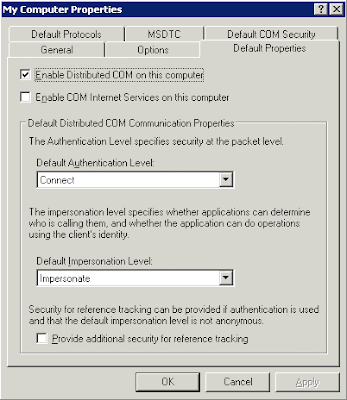
Run the DCOMCNFG tool at a command line prompt.
Click in Component Services, Computers, My Computer
Right-click My Computer .
Click the Default Properties tab.
Verify that Enable Distributed COM on this computer is selected.
Verify that Impersonate is selected in the Default Impersonation Level drop-down list.
Click OK .

SCRIPT: Setup Memory Dump

The following script will create a directory and set Full Memory Dump, save the memory dump file in this directory.

md C:\Dump
wmic recoveros set DebugInfoType = 1
wmic recoveros set DebugFilePath = C:\Dump\Mem.dmp
wmic recoveros set OverwriteExistingDebugFile = 1

Tuesday, May 12, 2009

CTX: WSH/WMI Error on Citrix - Part 2

How to Fix WSH and WMI Error on Citrix Presentation / Citrix XenApp Servers Part 2

Steps to troubleshot WMI Errors:

1) Verify PATH Variable and check for %systemroot%, %systemroot%\system32, and %systemroot%\system32\wbem entries.

System Properties, Advanced, Environment Variables and edit PATH varible.

2) Recompile MOF files

To recompile all Citrix .MOF files enter the following commands in a command prompt:
C:
CD "C:\Program Files\Citrix\System32\Citrix\WMI"
for %i in (*.mof, *.mfl) do Mofcomp %i

3) The DCOM Default Impersonation is NOT set to 'Identify'.

From the command line, the DCOM configuration can be corrected with the following command:REG.EXE Add HKLM\SOFTWARE\Microsoft\Ole /v LegacyImpersonationLevel /t REG_DWORD /d 2 /f


4) Check permissions on the WMI Citrix namespace–Root\Citrix.

Run the Computer Management snap-in.
Right-click My Computer and select Manage.
Expand Services and Applications, right-click WMI Control and select Properties.
Go to the Security tab, expand Root and highlight the Citrix folder.
Click Security.
Add the Local Service and Network Service accounts.

Ensure that both accounts get Execute Methods, Provider Write, and Enable Account.
Restart the Citrix WMI Service


5) Reinstall Citrix WMI Service

Disable the Windows Management Instrumentation Service.
Stop the Windows Management Instrumentation Service.
Delete the C:\WINDOWS\system32\wbem\Repository directory.
Re-enable the Windows Management Instrumentation Service.
Start the Windows Management Instrumentation Service.
Re-install Citrix WMI Providers by going into Add or Remove Programs > Citrix Presentation Server > Change.
Restart the server after the installation completes.
Open C:\Program Files\Citrix\System32\Citrix\WMI and edit all *.mof files in this folder. Edit with notepad.exe and add the following tag at the end of the files:
#pragma autorecover
Recompile the mof files using procedure #2 (Recompile MOF files)


6) Re-register WMI DLL

regsvr32 /s %systemroot%\system32\scecli.dll
regsvr32 /s %systemroot%\system32\userenv.dll

cd %systemroot%\system32\wbem
for /f %%s in ('dir /b /s *.dll') do regsvr32 /s %%s

7) Verify DCOM permissions

Click Start > Programs > Administrative Tools, and click Computer Management to open the Computer Management console.
In the left pane, expand Local Users and Groups, and click the Groups folder.
In the right pane, right-click the Users group and click Properties.
Click Add.
In the Select Users or Groups dialog box, locate Look in drop-down box and choose the local computer.
Select Authenticated Users and INTERACTIVE and click Add.
Click
OK, click Apply, and click Close to close the properties for the Users group.

8) Verify WMI Services Startup Type

Check following services are set to Startup Type: Automatic

Windows Management Instrumentation
WMI Performance Adapter
Windows Management Instrumentation Driver Extensions

Check this script to repair WMI errors

CTX: WSH/WMI Error on Citrix - Part 1

How to Fix WSH and WMI Error on Citrix Presentation / Citrix XenApp Servers Part 1

You found same of following errors on Event Viewer:

Event Type: ErrorEvent
Source: WSH
Event Category: None
Event ID: 1
User: N/A
Computer: USCTXSRV01
Description:
Citrix Monitoring Script Event 2
Citrix MetaFrame Session In Down State:
WMI error retrieving session object:
Received error: 0x8004100e: Invalid namespace [WBEM_E_INVALID_NAMESPACE]

Or/And

Citrix Monitoring Script Event 2
Citrix MetaFrame Session Idle Too Long:
WMI error retrieving session object:
Received error: 0x8004100e: Invalid namespace [WBEM_E_INVALID_NAMESPACE]

And/Or

Citrix Monitoring Script Event 2
Citrix MetaFrame Compute Event Rate:
WMI error connecting to Citrix WMI provider:
Received error: 0x8004100e: Invalid namespace [WBEM_E_INVALID_NAMESPACE]

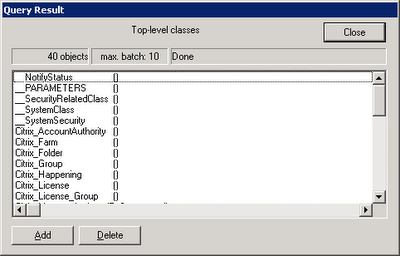
To start troubleshooting process, we must run WBEMTEST:

Click Start, click Run, and then type wbemtest.exe.
In the Namespace box, type root\Citrix and click in Connect button.


This is an example of a server with WMI issues:

This server can load the root\citrix. Now click on Enum Classes button and then click OK, leaving Superclass Name blank to verify the server can load all Citrix Classes.

This is an example of a server with WMI errors:


This is an example of a server with WMI working fine:

Monday, May 11, 2009

CtxAdmTools: CTX Realtime Report v1.1 Released

CTX Realtime Report v1.1 Generate Realtime Reports of the Citrix Farm.

CTX Realtime Report show:
* Applications Sessions (Summary): Show the list of Applications and the Amount of Sessions per Application.
* Applications Sessions (Full): Show the list of Applications and the Amount of Sessions per Application with extra info.
* Applications and Users per Server: Show the list of Applications and Users per Citrix Server.

More reports are coming soon!


Applications Sessions (Summary): Show the list of Applications and the Amount of Sessions per Application.


Applications Sessions (Full): Show the list of Applications and the Amount of Sessions per Application with extra info.

Applications and Users per Server: Show the list of Applications and Users per Server (NEW)


Download Ctx Realtime Report v1.1 at http://ctxadmtools.musumeci.com.ar/

Monday, April 20, 2009

MS: PSEXEC "The specified network name is no longer available" Error

When you try to run a process on a remote machine using PSEXEC.EXE, you receive this error:

PsExec v1.94 - Execute processes remotely
Copyright (C) 2001-2008 Mark Russinovich
Sysinternals - www.sysinternals.com

Couldn't access SERVER01: The specified network name is no longer available.

Usually this error appears when PSEXESVC service is installed on the remote machine and

Solution:

SC \\SERVER01 stop psexesvc
SC \\SERVER01 delete psexesvc