Working on a big company with thousands of Citrix servers around the world running multiples version of XenApp and Presentation server is the perfect scenario to found removing MFCOM can be one of the big mistakes of Citrix on years.
In very distributed and secure environments with multiples domains PowerShell is just not working to manage remote servers as well MFCOM can do it.
I hope Citrix will release a Future Pack to provide full access to MFCOM soon, or adoption level of XA6 will keep low…. And companies will keep running old versions or migrate to XA5!!!
Nobody will rewrite hundred of scripts and tools to Powershell, because NOBODY are using PowerShell, maybe in a few years...
Tuesday, March 15, 2011

Tuesday, February 01, 2011
MS: Events 1085 and 8194 on Windows 2008 - Group Policy Issues
A full hard disk caused the following errors to appears on event viewer in a Windows Server 2008 running Terminal Server and Citrix XenApp. The lack of space caused a GPO corruption on the server.

Log Name: System
Source: Microsoft-Windows-GroupPolicy
Event ID: 1085
Level: Warning
Description:Windows failed to apply the Group Policy "MyPolicy" settings. Group Policy "MyPolicy" settings might have its own log file. Please click on the "More information" link.

Log Name: Application
Source: Group Policy Start Menu Settings
Event ID: 8194
Level: Error
Description: The client-side extension could not remove user policy settings for 'MyPolicy' because it failed with error code '0x8007000d The data is invalid.' See trace file for more details.
SOLUTION: Delete the content of folder C:\ProgramData\Microsoft\Group Policy\History, run GPUPDATE /FORCE and reboot server.

Log Name: System
Source: Microsoft-Windows-GroupPolicy
Event ID: 1085
Level: Warning
Description:Windows failed to apply the Group Policy "MyPolicy" settings. Group Policy "MyPolicy" settings might have its own log file. Please click on the "More information" link.

Log Name: Application
Source: Group Policy Start Menu Settings
Event ID: 8194
Level: Error
Description: The client-side extension could not remove user policy settings for 'MyPolicy' because it failed with error code '0x8007000d The data is invalid.' See trace file for more details.
SOLUTION: Delete the content of folder C:\ProgramData\Microsoft\Group Policy\History, run GPUPDATE /FORCE and reboot server.
Friday, January 28, 2011
MS: Terminal Server issue - Error 4105
Error:
Log Name: System
Source: Microsoft-Windows-TerminalServices-Licensing
Event ID: 4105
Level: Warning
Description:
The Remote Desktop license server cannot update the license attributes for user "user" in the Active Directory Domain "domain.com". Ensure that the computer account for the license server is a member of Terminal Server License Servers group in Active Directory domain "domain.com".If the license server is installed on a domain controller, the Network Service account also needs to be a member of the Terminal Server License Servers group.If the license server is installed on a domain controller, after you have added the appropriate accounts to the Terminal Server License Servers group, you must restart the Remote Desktop Licensing service to track or report the usage of RDS Per User CALs.Win32 error code: 0x80070005

This issue is caused by missing Terminal server attributes on Windows 2008 R2 Active Directory Domains. This issue can cause issues on Citrix logins.
Solution:
cls
$root = New-Object DirectoryServices.DirectoryEntry
$URL$ds = New-Object DirectoryServices.DirectorySearcher
$ds.SearchRoot = $root
$ds.filter = "objectCategory=Person"
$src = $ds.findall()
write-host "Found" $src.count "user objects.`n"
$src %{
$de = $_.getdirectoryentry()
$accessrules = $de.get_objectsecurity().getaccessrules($true, $false,[System.Security.Principal.SecurityIdentifier]) ?{$_.ObjectType -eq "5805bc62-bdc9-4428-a5e2-856a0f4c185e"}
if ((measure-object -inputobject $accessrules).count -eq 0)
{
$ar = new-object System.DirectoryServices.ActiveDirectoryAccessRule([System.Security.Principal.SecurityIdentifier]"S-1-5-32-561", 48, "Allow", [guid]"5805bc62-bdc9-4428-a5e2-856a0f4c185e")
$de.get_objectsecurity().addaccessrule($ar)
$de.commitchanges()
write-host -f yellow ("Added:`t" + $de.properties["sAMAccountName"])
start-sleep -m 200
}
else
{
write-host -f green ("OK:`t" + $de.properties["sAMAccountName"])
}
}
Log Name: System
Source: Microsoft-Windows-TerminalServices-Licensing
Event ID: 4105
Level: Warning
Description:
The Remote Desktop license server cannot update the license attributes for user "user" in the Active Directory Domain "domain.com". Ensure that the computer account for the license server is a member of Terminal Server License Servers group in Active Directory domain "domain.com".If the license server is installed on a domain controller, the Network Service account also needs to be a member of the Terminal Server License Servers group.If the license server is installed on a domain controller, after you have added the appropriate accounts to the Terminal Server License Servers group, you must restart the Remote Desktop Licensing service to track or report the usage of RDS Per User CALs.Win32 error code: 0x80070005

This issue is caused by missing Terminal server attributes on Windows 2008 R2 Active Directory Domains. This issue can cause issues on Citrix logins.
Solution:
Run the following powershell script. The script MUST run on PowerShell 2.0 and with administrator permissions (right click on the powershell icon and select Run as Administrator. Modify the domain name in the script.
$URL = ldap://DC=mydomain,DC=com/;
cls
$root = New-Object DirectoryServices.DirectoryEntry
$URL$ds = New-Object DirectoryServices.DirectorySearcher
$ds.SearchRoot = $root
$ds.filter = "objectCategory=Person"
$src = $ds.findall()
write-host "Found" $src.count "user objects.`n"
$src %{
$de = $_.getdirectoryentry()
$accessrules = $de.get_objectsecurity().getaccessrules($true, $false,[System.Security.Principal.SecurityIdentifier]) ?{$_.ObjectType -eq "5805bc62-bdc9-4428-a5e2-856a0f4c185e"}
if ((measure-object -inputobject $accessrules).count -eq 0)
{
$ar = new-object System.DirectoryServices.ActiveDirectoryAccessRule([System.Security.Principal.SecurityIdentifier]"S-1-5-32-561", 48, "Allow", [guid]"5805bc62-bdc9-4428-a5e2-856a0f4c185e")
$de.get_objectsecurity().addaccessrule($ar)
$de.commitchanges()
write-host -f yellow ("Added:`t" + $de.properties["sAMAccountName"])
start-sleep -m 200
}
else
{
write-host -f green ("OK:`t" + $de.properties["sAMAccountName"])
}
}
Friday, January 21, 2011
CTX: Windows 7 and Office 2010 running XenDesktop 5 @iPad
I'm working on a XenDesktop 5 PoC (Proof of concept).
This is a iPad running Windows 7 and Office 2o1o! How amazing is this!

Right-Click and Audio are two issues I found on the pilot.
This is a iPad running Windows 7 and Office 2o1o! How amazing is this!

Right-Click and Audio are two issues I found on the pilot.
CTX: Exchange is unavailable error on Citrix or Terminal Server
When a user opens Outlook on Citrix XenApp (or Terminal Server) running on Windows 2008, he received an error: “Exchange is unavailable”.
They are several reasons for this issue:
1) Network issues:
Check network connection. Check if network gateway is ok. Reset the network connection.
2) Cached Profiles:
They are several reasons for this issue:
1) Network issues:
Check network connection. Check if network gateway is ok. Reset the network connection.
2) Cached Profiles:
- Check the date of cached profile folder for the user on the C:\Users folder. If the date is from previous days, ask user to log off and delete the cached profile. Also delete any temp folder, they are corrupted profiles.
- Check Profile List and delete key with .bak at the end in HKEY_LOCAL_MACHINE\SOFTWARE\Microsoft\Windows NT\CurrentVersion\ProfileList. Compare users in task manager and delete profiles from not connected users too.
Note: you can enable a GPO to delete profiles when users log off from a session.
Open Group Policies Management console. Expand Computer Configuration, expand Administrative Templates, expand System, and then expand User Profiles.
Double-click Delete cached copies of roaming profiles, click Enabled
This GPO not always is working properly. A process lock the profile and some pieces of the profile still on folder. You can enable a GPO to delete profiles older than XX days when server is rebooted, to delete these profiles.
Open Group Policies Management console. Expand Computer Configuration, expand Administrative Templates, expand System, and then expand User Profiles. Double-click Delete user profiles older than a specified number of days on system restart and type amount of days.Thursday, December 30, 2010
EXCHANGE: Apply to Mailbox Retention Policy to Security Group Members
This powershell script will apply a Mailbox Retention Policy to a Active Directory Security Group Members
This script require Quest ActiveRoles Management Shell for Active Directory, available for FREE at http://www.quest.com/powershell/
To add the ActiveRoles Management Shell snap-in from Windows PowerShell
At the Windows PowerShell prompt, enter the following command:
Add-PSSnapin Quest.ActiveRoles.ADManagement
This is the script:
Get-QADGroupMember 'Exchange Retention Exception' | ForEach-Object {set-Mailbox $_.Name -ManagedFolderMailboxPolicy "Managed-Folders-60-Days"}
This script require Quest ActiveRoles Management Shell for Active Directory, available for FREE at http://www.quest.com/powershell/
To add the ActiveRoles Management Shell snap-in from Windows PowerShell
At the Windows PowerShell prompt, enter the following command:
Add-PSSnapin Quest.ActiveRoles.ADManagement
This is the script:
Get-QADGroupMember 'Exchange Retention Exception' | ForEach-Object {set-Mailbox $_.Name -ManagedFolderMailboxPolicy "Managed-Folders-60-Days"}
Wednesday, December 15, 2010
MS: set color quality to 32 bit when RDP VMware VMs
When I RDP a VMware Virtual Machine (VM) running Windows Server 2008. The color quality is 16 bit even if we set 32 bit on Remote Desktop Client.
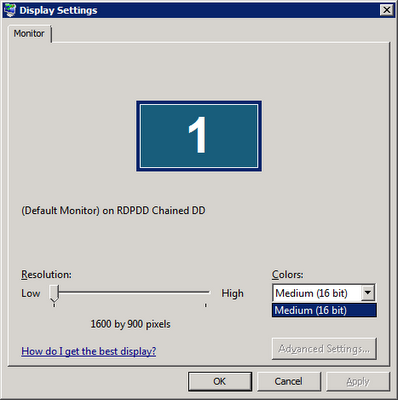
Solution: modify the local policy using gpedit.msc and modify following policy:
Computer Configuration, Administrative Templates, Windows Components, Terminal Services, Terminal Server, Remote Session Environment
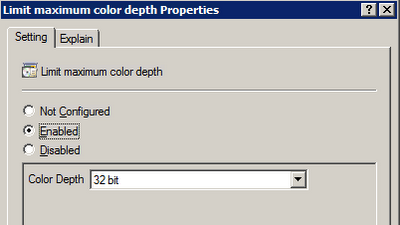
Solution: modify the local policy using gpedit.msc and modify following policy:
Computer Configuration, Administrative Templates, Windows Components, Terminal Services, Terminal Server, Remote Session Environment

MS: Report items amount and size of each manage folder in Exchange
This powershell script will show how many items and size of each managed folder of all users in a Exchange 2007/2010 organization.
Get-Mailbox foreach { $mbx = $_.DisplayName; Get-MailboxFolderStatistics $_.identity -FolderScope 'Managed Folders' select @{n="DisplayName";e={$mbx}},FolderPath,ItemsInFolder,@{n="FolderSize(MB)";e={$_.folderSize.toMB()}}} export-csv c:\reports\ManagedFolders_12152010.csv
Get-Mailbox foreach { $mbx = $_.DisplayName; Get-MailboxFolderStatistics $_.identity -FolderScope 'Managed Folders' select @{n="DisplayName";e={$mbx}},FolderPath,ItemsInFolder,@{n="FolderSize(MB)";e={$_.folderSize.toMB()}}} export-csv c:\reports\ManagedFolders_12152010.csv
Monday, December 13, 2010
MS: Windows 2008 Profile Loading Error
Check Profile List and delete key with .bak at the end.
HKEY_LOCAL_MACHINE\SOFTWARE\Microsoft\Windows NT\CurrentVersion\ProfileList
HKEY_LOCAL_MACHINE\SOFTWARE\Microsoft\Windows NT\CurrentVersion\ProfileList
Tuesday, November 30, 2010
MS: E-mail Records Management and E-mail Retention
Great posts of Adam Harmetz @ Microsoft Records Management Team Blog about e-mail retention in Exchange 2007:
http://blogs.msdn.com/b/recman/archive/2006/12/19/email-records-management-part-1.aspx
http://blogs.msdn.com/b/recman/archive/2007/01/05/e-mail-records-management-part-2.aspx
http://blogs.msdn.com/b/recman/archive/2007/01/18/e-mail-records-management-part-3-e-mail-retention.aspx
http://blogs.msdn.com/b/recman/archive/2006/12/19/email-records-management-part-1.aspx
http://blogs.msdn.com/b/recman/archive/2007/01/05/e-mail-records-management-part-2.aspx
http://blogs.msdn.com/b/recman/archive/2007/01/18/e-mail-records-management-part-3-e-mail-retention.aspx
MS: Create a Managed Folder Mailbox Policy on Exchange 2007 or 2010
Create a Managed Folder Mailbox Policy on Exchange 2007 or 2010
Create a Managed Custom Folder
>> Open Exchange Management Console.
>> Expand the Organization Configuration node and then click Mailbox.
>> Click in Managed Custom Folder tab
>> Right-click and choose the New Managed Custom Folder
>> The New Managed Custom Folder wizard appears. Complete required information.
Also we can use the following example cmdlet:
New-ManagedFolder -Name '3 Months Retention' -FolderName '3 Months Retention' StorageQuota 'unlimited'
Create a Managed Folder Mailbox Policy
>> Open Exchange Management Console.
>> Expand the Organization Configuration node and then click Mailbox.
>> Click in Managed Folder Mailbox Policies tab
>> Right-click and choose the New Managed Folder Mailbox Policy
>> The New Managed Folder Mailbox Policy wizard appears. Complete required information.
Also we can use the following example cmdlet:
new-ManagedFolderMailboxPolicy -Name "RetentionPolicy" -ManagedFolderLinks "3 Months Retention"
Assign the policy to a mailbox
>> Open Exchange Management Console.
>> Expand Recipient Configuration.
>> Double click on the desired mailbox.
>> Click on Mailbox Settings tab.
>> Select Message Records Management.
>> Click on Properties button.
>> Select the Managed Folder Mailbox Policy and make sure that Managed folder mailbox policy checkbox is checked.
Also we can use the following example cmdlet to apply to policy to a single mailbox:
Set-Mailbox -Identity GMusumeci -ManagedFolderMailboxPolicy "RetentionPolicy"
The following example cmdlet apply to policy to multiple mailboxes:
Get-Mailbox -database "EXCHSRV01\Storage Group 1\Mailbox Database 1" Set-Mailbox -ManagedFolderMailboxPolicy "RetentionPolicy"
Force the updates
We can force at server level or user level, using following two cmdlets:
Start-ManagedFolderAssistant –Identity EXCHSRV01
Start-ManagedFolderAssistant –Mailbox GMusumeci
Create a Managed Custom Folder
>> Open Exchange Management Console.
>> Expand the Organization Configuration node and then click Mailbox.
>> Click in Managed Custom Folder tab
>> Right-click and choose the New Managed Custom Folder
>> The New Managed Custom Folder wizard appears. Complete required information.
Also we can use the following example cmdlet:
New-ManagedFolder -Name '3 Months Retention' -FolderName '3 Months Retention' StorageQuota 'unlimited'
Create a Managed Folder Mailbox Policy
>> Open Exchange Management Console.
>> Expand the Organization Configuration node and then click Mailbox.
>> Click in Managed Folder Mailbox Policies tab
>> Right-click and choose the New Managed Folder Mailbox Policy
>> The New Managed Folder Mailbox Policy wizard appears. Complete required information.
Also we can use the following example cmdlet:
new-ManagedFolderMailboxPolicy -Name "RetentionPolicy" -ManagedFolderLinks "3 Months Retention"
Assign the policy to a mailbox
>> Open Exchange Management Console.
>> Expand Recipient Configuration.
>> Double click on the desired mailbox.
>> Click on Mailbox Settings tab.
>> Select Message Records Management.
>> Click on Properties button.
>> Select the Managed Folder Mailbox Policy and make sure that Managed folder mailbox policy checkbox is checked.
Also we can use the following example cmdlet to apply to policy to a single mailbox:
Set-Mailbox -Identity GMusumeci -ManagedFolderMailboxPolicy "RetentionPolicy"
The following example cmdlet apply to policy to multiple mailboxes:
Get-Mailbox -database "EXCHSRV01\Storage Group 1\Mailbox Database 1" Set-Mailbox -ManagedFolderMailboxPolicy "RetentionPolicy"
Force the updates
We can force at server level or user level, using following two cmdlets:
Start-ManagedFolderAssistant –Identity EXCHSRV01
Start-ManagedFolderAssistant –Mailbox GMusumeci
Tuesday, November 23, 2010
MS: Get Exchange Mailbox Info (Exchange 2007 / 2010 or later)
This PowerShell script show the size of the Inbox folder and export the result to CSV file (excel)
Get-Mailbox foreach { $mbx = $_.DisplayName; Get-MailboxFolderStatistics $_.identity -FolderScope 'Inbox' select @{n="DisplayName";e={$mbx}},FolderPath,ItemsInFolder,@{n="FolderSize(MB)";e={$_.folderSize.toMB()}}} export-csv c:\Inbox.csv
This is another script to show the size of the Inbox folder and export the result to CSV file (excel)
Get-Mailbox -ResultSize Unlimited Select-Object Name, @{n='Inbox';e={(Get-MailboxFolderStatistics $_.Identity -FolderScope Inbox).FolderAndSubfolderSize.ToMb() }} Export-Csv c:\Inbox.csv -NoTypeInformation
Get-Mailbox foreach { $mbx = $_.DisplayName; Get-MailboxFolderStatistics $_.identity -FolderScope 'Inbox' select @{n="DisplayName";e={$mbx}},FolderPath,ItemsInFolder,@{n="FolderSize(MB)";e={$_.folderSize.toMB()}}} export-csv c:\Inbox.csv
This is another script to show the size of the Inbox folder and export the result to CSV file (excel)
Get-Mailbox -ResultSize Unlimited Select-Object Name, @{n='Inbox';e={(Get-MailboxFolderStatistics $_.Identity -FolderScope Inbox).FolderAndSubfolderSize.ToMb() }} Export-Csv c:\Inbox.csv -NoTypeInformation
Thursday, November 11, 2010
VMware: VMUpgradeHelper service was unable to get the list of network adaptars for this computer
Error: The service was unable to get the list of network adapters for this computer. This problem can occur when the Windows Management Instrumentation service is not started. Please check that the Windows Management Instrumentation service has been started on this computer.
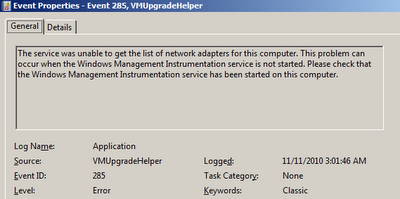 Solution: This issue is caused by WMI on server. Verify WMI service is running. Rebuild the WMI using following article http://musumeci.blogspot.com/2010/11/ms-windows-management-instrumentation.html
 Solution: This issue is caused by WMI on server. Verify WMI service is running. Rebuild the WMI using following article http://musumeci.blogspot.com/2010/11/ms-windows-management-instrumentation.html
CTX: Edgesight is reporting Device Model as [Unknown]
Error: When you check the Edgesight console, you will found Device Model shows [Unknown]
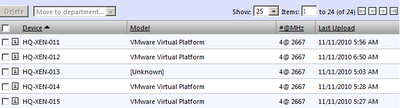 Solution: This issue is caused by WMI on Citrix server. Verify WMI service is running. Rebuild the WMI using following article http://musumeci.blogspot.com/2010/11/ms-windows-management-instrumentation.html
 Solution: This issue is caused by WMI on Citrix server. Verify WMI service is running. Rebuild the WMI using following article http://musumeci.blogspot.com/2010/11/ms-windows-management-instrumentation.html
Wednesday, November 10, 2010
CTX: How to Import ICAClient.adm file into Active Directory to modify Citrix Plug-in client settings using GPO
How to Import ICAClient.adm file into Active Directory to modify Citrix Plug-in (formerly known as ICA Client) client settings using GPO.
http://xenapp6.musumeci.com.ar/TechnicalNotes/How_to_Import_ICAClient.adm_file.html
http://xenapp6.musumeci.com.ar/TechnicalNotes/How_to_Import_ICAClient.adm_file.html
MS: Windows Management Instrumentation ADAP failed to connect to namespace \\.\root\cimv2
Issue:
WMI is not reporting hardware information to some applications (like Citrix EdgeSight or HP Proliant Support Pack, for example). Event Viewer will show the following error:
Windows Management Instrumentation ADAP failed to connect to namespace \\.\root\cimv2 with the following error 0x80041002
Solution:
Rebuild WMI. Create a script with following lines and run on affected server:
cd /d %windir%\system32\wbem
for %i in (*.dll) do RegSvr32 -s %i
for %i in (*.exe) do %i /RegServer
Run %windir%\system32\wbem\wbemtest and click Connect button. And connect to root\cimv2 namespace, to verify is working.
If still not working, run following command to reset WMI to initial state:
%windir%\system32\wbem\winmgmt /resetrepository
WMI is not reporting hardware information to some applications (like Citrix EdgeSight or HP Proliant Support Pack, for example). Event Viewer will show the following error:
Windows Management Instrumentation ADAP failed to connect to namespace \\.\root\cimv2 with the following error 0x80041002
Solution:
Rebuild WMI. Create a script with following lines and run on affected server:
cd /d %windir%\system32\wbem
for %i in (*.dll) do RegSvr32 -s %i
for %i in (*.exe) do %i /RegServer
Run %windir%\system32\wbem\wbemtest and click Connect button. And connect to root\cimv2 namespace, to verify is working.
If still not working, run following command to reset WMI to initial state:
%windir%\system32\wbem\winmgmt /resetrepository
Tuesday, November 09, 2010
MS: Unnamed VM could not initialize error on Hyper-V
When you migrate or move (manually) virtual machines, between different hard disks or servers, you will receive the following error:
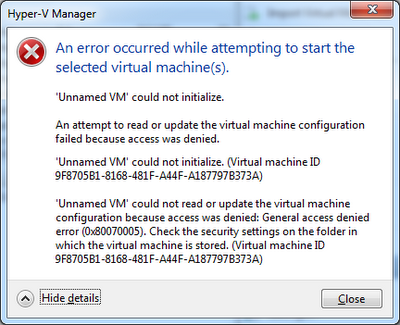
Solution: Download Hyper-V Unnamed VM Fix tool from http://ctxadmtools.musumeci.com.ar/HyperVHotFixes
An error occurred while attempting to start the selected virtual machine(s).
Unnamed VM could not initialize.

Solution: Download Hyper-V Unnamed VM Fix tool from http://ctxadmtools.musumeci.com.ar/HyperVHotFixes
Monday, November 08, 2010
CtxAdmTools: HP Proliant Support Pack v1.5 Released!
HP Proliant Support Pack Cleaner v1.5 - This FREE tool remove the agents of HP Proliant Support Pack from HP/Compaq Virtualized Servers
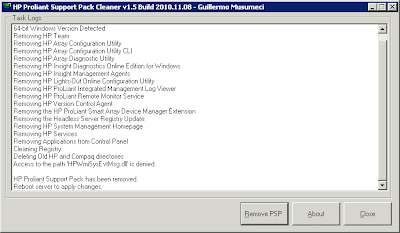
Download at http://ctxadmtools.musumeci.com.ar
NEW in this version
- Support both x86 and x64 versions of HP Proliant Support Pack.
- Run in Unattended mode using /NOGUI parameter.

Download at http://ctxadmtools.musumeci.com.ar
Thursday, November 04, 2010
VMware: Performance Best Practices for VMware vSphere 4.1
VMware has released this document regarding Performance Best Practices for VMware vSphere 4.1
http://www.vmware.com/pdf/Perf_Best_Practices_vSphere4.1.pdf
http://www.vmware.com/pdf/Perf_Best_Practices_vSphere4.1.pdf
Monday, October 25, 2010
CTX: SMB Tuning for XenApp and File Servers on Windows Server 2008
SMB Tuning for XenApp and File Servers on Windows Server 2008
http://community.citrix.com/display/ocb/2010/10/21/SMB+Tuning+for+XenApp+and+File+Servers+on+Windows+Server+2008
http://community.citrix.com/display/ocb/2010/10/21/SMB+Tuning+for+XenApp+and+File+Servers+on+Windows+Server+2008
Subscribe to:
Posts (Atom)