Guillermo

Friday, July 24, 2009

MS: Open File - Security Warning Dialog

When you have a script or .exe file trying to load .exe file, probably you saw this dialog:


Open File - Security Warning Dialog


The published could not be verified. Are you sure you want to run this software?


You can uncheck the Always ask before opening this file check box, if you have issues on one machine, but if you need to run a new application you can't uncheck 200 citrix servers right?


Wednesday, July 22, 2009

MS: Windows 7 and Windows 2008 R2 are RTM!

Microsoft today announced the release to manufacturing (RTM) of Windows 7 and Windows Server 2008 R2. Windows 7 will be generally available to customers around the world on October 22, and Windows Server 2008 R2 will be generally available on or before that date.
Current customers of the Microsoft Volume Licensing program, MSDN subscribers and TechNet subscribers will be among the first to get customer access to Windows 7 and Windows Server 2008 R2 in August 6th.

http://www.microsoft.com/windows/default.aspx

http://www.microsoft.com/windowsserver2008/en/us/R2.aspx

Monday, June 29, 2009

CTX: Best Practices for Citrix XenApp Hotfix Rollup Pack Installation and Deployment

Best Practices for Citrix XenApp Hotfix Rollup Pack Installation and Deployment
This article introduces and discusses some of the best practices for installing and deploying a Hotfix Rollup Pack for XenApp 5.0 for Windows Server 2003 and Presentation Server 4.5.

Friday, June 26, 2009

MS: Could not reconnect all network drives

To fix the Balloon error on Taskbar: Could not reconnect all network drives:

Start > Run > type Regedit

HKEY_CURRENT_USER\Software\Microsoft\Windows\CurrentVersion\Explorer\MountPoints2

Check the Network Drive(s) and then delete registry key(s)

Thursday, June 25, 2009

CtxAdmTools: List HotFix v2.0 Updated!

List HotFix v2.0 - Release Date: June 16, 2009 - This FREE tool list all Citrix and Microsoft Hot Fixes installed in your Citrix farm or local and remote Windows servers

Last week I was on a call with Citrix technical support and they ask me: Do you have MS hotfix KBXXXXXX installed on the server with issues? Do you have Citrix patch PSE450R01W2K3XXX installed? I don’t know.

Few hours later I was writing List HotFix v2.0, a new tool to search for this info. List HotFix was developed from scratch. The old List HotFix show only citrix hotfixes in the entire Citrix farm.
This version show the Citrix/MS hotfixes list from a Citrix servers on a farm, Active Directory computers, text files, etc.

With the FREE List HotFix v2.0, you can list all Citrix and Microsoft Hot Fixes / Patches / Updates installed on your Citrix farm or local and remote Windows/Citrix servers, search for a specific HotFix and export the results to Excel files.

List HotFix v2.0 requires .NET Framework v2.0 or later.

Download List HotFix v2.0 from http://ctxadmtools.musumeci.com.ar/


Search for an specific HotFix:


Export results to Excel Files:


Wednesday, June 24, 2009

CtxAdmTools: AD Show User Groups v1.0 Released!

AD Show User Groups is a FREE tool inspired by these typical calls from Support Engineers or Technical Analyst: can you send me a list of Active Directory groups for this user?

AD Show User Groups show Group Membership of a specific AD User and export results to a text file.

Download AD Show User Groups from http://ctxadmtools.musumeci.com.ar/

Monday, June 15, 2009

MS: IPSEC error: The system cannot find the file specified

Event Type: Error
Event Source: Service Control Manager
Event Category: None
Event ID: 7023
Description:
The IPSEC Services service terminated with the following error:
The system cannot find the file specified.

Solution:
Click Start, click Run, type regsvr32 polstore.dll

Wednesday, June 10, 2009

CTX: How detect if an application is running through Citrix?

To detect if an application is running through Citrix or Terminal Server use the .NET code below in your application.

System.Windows.Forms.SystemInformation.TerminalServerSession
True = running on TS or Citrix


To check inside on your VB6 application:

Private Declare Function GetSystemMetrics Lib "user32.dll" (ByVal nIndex As Long) As Long
Const SM_REMOTESESSION = &H1000

if GetSystemMetrics(SM_REMOTESESSION)<>0 then MsgBox "Running on Citrix/Terminal Server"

Tuesday, May 26, 2009

MS: Microsoft releases Windows Server 2008 and Vista Service Pack 2

Microsoft has released a Five Language Standalone Installer for Windows Server 2008 SP2 and Windows Vista SP2 today. Windows Server 2008 SP2 and Windows Vista Service Pack 2 can be installed on based systems with any of the following language versions: English, French, German, Japanese, or Spanish.

Download: Vista SP2/Server 2008 SP2 x86
Download: Vista SP2/Server 2008 SP2 x64

Wednesday, May 20, 2009

MS: GPRESULT Access Denied Error

Open Command Prompt and paste following commands:

cd /d %windir%\system32
regsvr32 /n /I userenv.dll
cd wbem
mofcomp scersop.mof
gpupdate /force
gpresult

or create a .cmd file and copy the script below

cd /d %windir%\system32
start /wait regsvr32 /n /I userenv.dll
cd wbem
start /wait mofcomp scersop.mof
gpupdate /force
gpresult

Friday, May 15, 2009

CtxAdmTools: Detect Remote ICA Client v1.0 Released!

Detect Remote ICA Client v1.0: This FREE tool show the Version of the Citrix ICA Client installed on a remote machine(s) and generate a report file.

Download at http://ctxadmtools.musumeci.com.ar

Thursday, May 14, 2009

CtxAdmTools: CTX User Counter v1.0 Released!

CTX User Counter v1.0: This FREE tool show the amount of unique users on a Citrix Farm.

Show the amount of unique users (no sessions) on the farm. Useful to calculate amount of Citrix licenses required.

Available at http://ctxadmtools.musumeci.com.ar

Wednesday, May 13, 2009

CtxAdmTools: Permissions to Run MFCOM Applications

If you try to run any CtxAdmTools application or MFCOM script on a Citrix server and you receive an error like "You must be a Citrix admin to run this script" following this procedure:

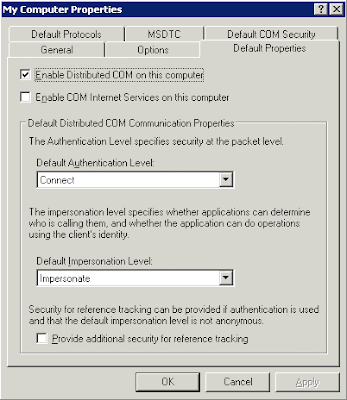
Run the DCOMCNFG tool at a command line prompt.
Click in Component Services, Computers, My Computer
Right-click My Computer .
Click the Default Properties tab.
Verify that Enable Distributed COM on this computer is selected.
Verify that Impersonate is selected in the Default Impersonation Level drop-down list.
Click OK .

SCRIPT: Setup Memory Dump

The following script will create a directory and set Full Memory Dump, save the memory dump file in this directory.

md C:\Dump
wmic recoveros set DebugInfoType = 1
wmic recoveros set DebugFilePath = C:\Dump\Mem.dmp
wmic recoveros set OverwriteExistingDebugFile = 1

Tuesday, May 12, 2009

CTX: WSH/WMI Error on Citrix - Part 2

How to Fix WSH and WMI Error on Citrix Presentation / Citrix XenApp Servers Part 2

Steps to troubleshot WMI Errors:

1) Verify PATH Variable and check for %systemroot%, %systemroot%\system32, and %systemroot%\system32\wbem entries.

System Properties, Advanced, Environment Variables and edit PATH varible.

2) Recompile MOF files

To recompile all Citrix .MOF files enter the following commands in a command prompt:
C:
CD "C:\Program Files\Citrix\System32\Citrix\WMI"
for %i in (*.mof, *.mfl) do Mofcomp %i

3) The DCOM Default Impersonation is NOT set to 'Identify'.

From the command line, the DCOM configuration can be corrected with the following command:REG.EXE Add HKLM\SOFTWARE\Microsoft\Ole /v LegacyImpersonationLevel /t REG_DWORD /d 2 /f


4) Check permissions on the WMI Citrix namespace–Root\Citrix.

Run the Computer Management snap-in.
Right-click My Computer and select Manage.
Expand Services and Applications, right-click WMI Control and select Properties.
Go to the Security tab, expand Root and highlight the Citrix folder.
Click Security.
Add the Local Service and Network Service accounts.

Ensure that both accounts get Execute Methods, Provider Write, and Enable Account.
Restart the Citrix WMI Service


5) Reinstall Citrix WMI Service

Disable the Windows Management Instrumentation Service.
Stop the Windows Management Instrumentation Service.
Delete the C:\WINDOWS\system32\wbem\Repository directory.
Re-enable the Windows Management Instrumentation Service.
Start the Windows Management Instrumentation Service.
Re-install Citrix WMI Providers by going into Add or Remove Programs > Citrix Presentation Server > Change.
Restart the server after the installation completes.
Open C:\Program Files\Citrix\System32\Citrix\WMI and edit all *.mof files in this folder. Edit with notepad.exe and add the following tag at the end of the files:
#pragma autorecover
Recompile the mof files using procedure #2 (Recompile MOF files)


6) Re-register WMI DLL

regsvr32 /s %systemroot%\system32\scecli.dll
regsvr32 /s %systemroot%\system32\userenv.dll

cd %systemroot%\system32\wbem
for /f %%s in ('dir /b /s *.dll') do regsvr32 /s %%s

7) Verify DCOM permissions

Click Start > Programs > Administrative Tools, and click Computer Management to open the Computer Management console.
In the left pane, expand Local Users and Groups, and click the Groups folder.
In the right pane, right-click the Users group and click Properties.
Click Add.
In the Select Users or Groups dialog box, locate Look in drop-down box and choose the local computer.
Select Authenticated Users and INTERACTIVE and click Add.
Click
OK, click Apply, and click Close to close the properties for the Users group.

8) Verify WMI Services Startup Type

Check following services are set to Startup Type: Automatic

Windows Management Instrumentation
WMI Performance Adapter
Windows Management Instrumentation Driver Extensions

Check this script to repair WMI errors

CTX: WSH/WMI Error on Citrix - Part 1

How to Fix WSH and WMI Error on Citrix Presentation / Citrix XenApp Servers Part 1

You found same of following errors on Event Viewer:

Event Type: ErrorEvent
Source: WSH
Event Category: None
Event ID: 1
User: N/A
Computer: USCTXSRV01
Description:
Citrix Monitoring Script Event 2
Citrix MetaFrame Session In Down State:
WMI error retrieving session object:
Received error: 0x8004100e: Invalid namespace [WBEM_E_INVALID_NAMESPACE]

Or/And

Citrix Monitoring Script Event 2
Citrix MetaFrame Session Idle Too Long:
WMI error retrieving session object:
Received error: 0x8004100e: Invalid namespace [WBEM_E_INVALID_NAMESPACE]

And/Or

Citrix Monitoring Script Event 2
Citrix MetaFrame Compute Event Rate:
WMI error connecting to Citrix WMI provider:
Received error: 0x8004100e: Invalid namespace [WBEM_E_INVALID_NAMESPACE]

To start troubleshooting process, we must run WBEMTEST:

Click Start, click Run, and then type wbemtest.exe.
In the Namespace box, type root\Citrix and click in Connect button.


This is an example of a server with WMI issues:

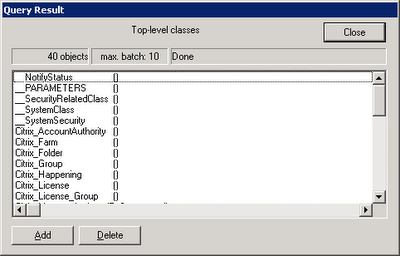
This server can load the root\citrix. Now click on Enum Classes button and then click OK, leaving Superclass Name blank to verify the server can load all Citrix Classes.

This is an example of a server with WMI errors:


This is an example of a server with WMI working fine:
Monday, May 11, 2009

CtxAdmTools: CTX Realtime Report v1.1 Released

CTX Realtime Report v1.1 Generate Realtime Reports of the Citrix Farm.

CTX Realtime Report show:
* Applications Sessions (Summary): Show the list of Applications and the Amount of Sessions per Application.
* Applications Sessions (Full): Show the list of Applications and the Amount of Sessions per Application with extra info.
* Applications and Users per Server: Show the list of Applications and Users per Citrix Server.

More reports are coming soon!


Applications Sessions (Summary): Show the list of Applications and the Amount of Sessions per Application.


Applications Sessions (Full): Show the list of Applications and the Amount of Sessions per Application with extra info.

Applications and Users per Server: Show the list of Applications and Users per Server (NEW)


Download Ctx Realtime Report v1.1 at http://ctxadmtools.musumeci.com.ar/

Monday, April 20, 2009

MS: PSEXEC "The specified network name is no longer available" Error

When you try to run a process on a remote machine using PSEXEC.EXE, you receive this error:

PsExec v1.94 - Execute processes remotely
Copyright (C) 2001-2008 Mark Russinovich
Sysinternals - www.sysinternals.com

Couldn't access SERVER01: The specified network name is no longer available.

Usually this error appears when PSEXESVC service is installed on the remote machine and

Solution:

SC \\SERVER01 stop psexesvc
SC \\SERVER01 delete psexesvc

Friday, March 20, 2009

MS: Internet Explorer 8.0 released

Today Microsoft released RTM version of Internet Explorer v8.0

http://www.microsoft.com/windows/internet-explorer

Internet Explorer 8.0 is available for following Operating Systems:

Windows XP (x86 and x64)
Windows Vista (x86 and x64)
Windows 2003 (x86 and x64)
Windows 2008 (x86 and x64)

Friday, March 13, 2009

MS: Add Or Remove Programs Has Been Restricted.

We you try to install or remove programs from Control Panel, ypou got this error:

Add Or Remove Programs Has Been Restricted. Please check with your Administrator.


To fix this error:
Navigate to this registry key:
HKEY_CURRENT_USER\Software\Microsoft\Windows\CurrentVersion\Policies\Uninstall
Delete subKey NoAddRemovePrograms